We're in the throes of summer and there have been a number of events, ranging from new construction (because there is never enough stuff to build), beekeeping, and birthdays. Here are a few highlights.
This guy turned three.
The honeybees are going gangbuster.
Chores with the animals usually include a pit stop at the swing set to get some wiggles out.
We're building a barn.
I'm not posting to social media much. I post some to Pixelfed and (even less frequently), Instagram.
Now that I've finished a rewrite of an application in HTMX, I wanted to see if HTMX could be used to enhance the use of Google Apps Script sidebar interfaces. I build these from time to time at work to help with spreadsheet interaction that goes beyond simple formulas. The idea is to allow for more dynamic interactions in the (very limited) sidebar available through Google Apps Script.
HTMX: This Won't Work
I started with adding HTMX directly and had no luck. The main issue is that HTMX uses ``XMLHttpRequest` to fetch data <https://developer.mozilla.org/en-US/docs/Web/API/XMLHttpRequest>`__, and that leads to CORS issues. When HTMX starts a request, a preflight check is made because it includes the upload parameter, which is considered "not simple" by the browser. This preflight check has to pass for the request to proceed.
The preflight fails because of the redirect between the published Apps Script /exec endpoint and the googleusercontent URL with the actual code. HTMX also adds headers to the request, which also makes the request unsafe and the preflight check fails with a CORS error.
So, I tried getting around the CORS issue by issuing async fetch calls, but that just adds a layer of complexity rather than solving a problem. It also confirms the fact that browser engineers are much smarter than me because it still didn't work.
All that said, fetching content directly from a sidebar won't work, let alone posting data to the backend.
Hyperscript to the Rescue
Hyperscript is a companion to HTMX which offers similar functionality, just in a different context. It's a lightweight scripting language with Python-ish syntax that you can include as a "_=*" attribute on HTML elements. You can add different handlers and listen for events just like with HTMX, so clean interactions are still possible.
Using Hyperscript, you can take advantage of the google.script.run() API to interact with your Apps Script code. This allows you to do some simple dynamic content replacement all the way up to accepting input from a user to query or update data in the sheet through the sidebar.
There are some utility functions we need to get the project started. I'm greatly indebted to Bruce McPherson and his extensive writing on Apps Script project structure. In your Code.gs file, we'll create some global functions to allow us to work more effectively between the Apps Script code and the client.
// Code.gs// Allow the client to access your Apps Script functions dynamically.functionexposeRun(namespace,method,argArray){varfunc=(namespace?this[namespace][method]:this[method]);if(argArray&&argArray.length){returnfunc.apply(this,argArray)}else{returnfunc();}}// Utility function to include other files in HTML templatesfunctioninclude(filename){returnHtmlService.createHtmlOutputFromFile(filename).getContent();}// Trigger the menu to open the sidebarfunctiononOpen(){constui=SpreadsheetApp.getUi()ui.createMenu('Menu').addItem('Run','showSidebar').addToUi()}// Display the sidebarfunctionshowSidebar(){consthtml=HtmlService.createTemplateFromFile('template/_base.html').evaluate().setTitle('The sidebar');SpreadsheetApp.getUi()// Or DocumentApp or SlidesApp or FormApp..showSidebar(html);}
I'll also use Bruce McPherson's Promise-based wrapper for working with Apps Script as a starting point. All of our requests will go through this method:
// static/main.js.html<script>varRunner=(function(ns){ns.run=function(namespace,method){letrunArgs=Array.prototype.slice.call(arguments).slice(2);if(arguments.length<2){thrownewError('Need at least a namespace and method.')}returnnewPromise(function(resolve,reject){google.script.run.withFailureHandler(function(err){reject(err)}).withSuccessHandler(function(result){resolve(result)}).exposeRun(namespace,method,runArgs)})}returnns;})(Runner||{})</script>
Templates
Now that the boilerplate is done, we need to start defining some worker classes and templates.
To keep things clean, I wrap each of my operations in an IIFE object which defines methods and the templates to return with each completion. This means there are more files to manage in the code editor, but each one encapsulates function cleanly and it's easier to maintain.
Make the Apps Script handler:
// SimpleSwap.gsvarSimpleSwap=(()=>{consthtmlTemplate=()=>{lethtml=`
<p
class="active"
_="on click set my innerHTML to 'Clicked!'"
>Click me!</p>`;returnhtml;}return{htmlTemplate};})();
And finally our base HTML template for the sidebar:
// static/_base.html// This is the sidebar wrapper. Content will be inserted dynamically.<!DOCTYPEhtml><html><head><basetarget="_top"><scriptsrc="https://unpkg.com/hyperscript.org@0.9.5"></script><!--Ourpromise-basedrunnergoogle.script.run()requests--><?!=include('static/Runner.js');?></head><body><main><divclass="main-container"><divclass="sample"><b>Dynamicinsertionandinteraction</b><!--HyperscripttointeractwiththeAppsScriptcode--><button_="
on click
call Runner.run('SimpleSwap', 'htmlTemplate')
then put the result into #target
then call _hyperscript.processNode(#target)
">trigger</button><!--Thisreceivestheresultoftherequest--><divid="target"></div></div><!--otherdivs...--></div></main></body></html>
This template will:
Allow us to access the Runner middleware to marshal API calls.
Click a button to run a bit of code.
Put the result of the Apps Script code into the #target div.
Initialize any Hyperscript included in the template to allow for interactivity following the swap.
The key in this method is to think through what interaction you want your template to have and to include that in the hyperscript attribute.
A More Complex Example
Let's say you want to make an Apps Script Extension (formerly "Add-on") or container bound script which allows you to fetch data from an API and then selectively insert results into your sheet. You can do that with Hyperscript inside the Apps Script sidebar quite cleanly. We'll keep the same boilerplate code but define a couple of functions to build a quick sample. I'm going to use the handy Star Wars API as the data source.
// SWAPI.gsvarSWAPI=(()=>{// We'll use these sheet params to interact with the spreadsheet.constss=SpreadsheetApp.getActiveSpreadsheet();constsheet=ss.getSheetByName('Sheet1');constgetPeople=()=>{letrequest=UrlFetchApp.fetch('https://swapi.dev/api/people').getContentText();letjson=JSON.parse(request);// Apps Script templates can evaluate data dynamically. Call the// template fragment and then define a parameter on the object you// want to access.// https://developers.google.com/apps-script/guides/html/templates#pushing_variables_to_templateslettemplate=HtmlService.createTemplateFromFile('template/swapi-list')template.people=json.results;// Evaluate the template and then get the resulting HTML to return.lethtml=template.evaluate().getContent()returnhtml}constsaveName=(name)=>{sheet.getRange(sheet.getLastRow()+1,1).setValue(name);}return{getPeople,saveName}})();
And lastly, our new template fragment which handles looping over the results as part of the evaluation step.
<!-- templates/swapi-list.html --><!-- Read the docs on Apps Script template evaluation if you
haven't looked them over before. They can be quite helpful
https://developers.google.com/apps-script/guides/html/templates
--><? for (var i=0; i<people.length; i++) { ?><spanclass="active"_='
on click call Runner.run("SWAPI", "saveName", "<?= people[i].name ?>")
then remove me
'><?= people[i].name ?></span><? } ?>
To help understand what's happening, we are:
Rendering a sidebar with a button to fetch results from a third party using URLFetchApp.
Allowing the Apps Script templating engine to handle rendering results.
Collecting the resulting HTML string and sending it back to the client.
Hyperscript swaps the HTML result into the DOM and then re-initializes on the new elements.
Clicking on a name adds it to the spreadsheet and then removes the option from the page.
Here's the result:
In the template, we define Hyperscript actions on each element so they also become interactive in the sidebar. Clicking on a name calls the saveName function and adds the value to the next available row in the sheet before removing itself from the sidebar.
Is it worth it?
This seems like a ton of work that could be achieved with out-of-the-box Javascript. So, is it all worth it?
It depends.
If you have minor interactions here and there, it might not be worth adding the extra attributes or taking time to create template fragments. DOM interactions can be pretty simple if you're just fetching and displaying data.
The real power of Hyperscript comes in locality of behavior and in making interaction plain in the HTML and not burying those actions in script files and event listeners. In the advanced example, I think Hyperscript is worth the effort because it is easy to see exactly what interactions exist on which elements.
Apps Script is notorious for weird behavior just because of the platform. Adding Hyperscript as a tool to manage interaction and behaviors can help identify bugs sooner because you - the developer - have a better idea of which interaction causes which behavior in the application.
If you're on the fence, take some time just to play around with simple swaps like I showed in the first example. Once you have the hang of writing behaviors on elements rather than in event handlers, some of the benefits will start to emerge.
Last year, I built an event registration tool for our district, mainly to keep track of what professional development we were doing and try to get paper out of the workflow. I chose to use Flask and Svelte for this project and this year, I decided to move away from Svelte and rebuild the application using HTMX. In this post, I'll explain why I decided to make the change and highlight some situations where HTMX just makes more sense for a large app managed by a single person.
Making a Switch
I'm self taught. I started playing with Internety things in the late 00's, starting with WordPress and straight HTML/CSS. I added Javascript slowly and since then, have managed to cobble together some kind of useful tools. Mostly for myself, but some to benefit others.
I had tried taking a dive into React, Meteor, and Vue, all with little or no success. The complexity of the frameworks and the abstraction needed to get stuff to show up on the page went way over my head, especially as a hobbyist. Adding complexity was the requirement to use build systems (I know Vue can be added directly with script tags, but that's not where I was introduced to it) and those felt untouchable.
Over the 2019-2020 school year, I got what I'll call a "working prototype" of an events registration system published using Firebase, some HTML, and a lot of vanilla Javascript. That pushed me closer to understanding build systems and when Svelte came along, its syntax finally felt familiar - just some template tags with scoped Javascript and CSS. Not too hard to handle.
I had a published version of the registration site by fall 2021 and it worked well for a first "real" project. Python did the heavy lifting in the background and I was able to have a nice interaction on the front with Svelte. So, why the move?
There are two main reasons:
It's essentially an application to create and maintain records. I don't need elements to be running continuously (ie, a video player) while the user does things. Having a Javascript-built application was overkill for the purpose of the site. Rich Harris (creator of Svelte) elaborates on this in a podcast on when to use single-page applications over multiple-page structures.
Maintainability of large Javascript-based systems is very difficult. Granted, I'm an amateur and this was my first project, so there are things I can certainly do better to take advantage of the systems, but I found myself reluctant to touch the app for updates because it would take me so long to untangle how everything worked together.
With those issues in mind, that's why I decided to move to HTMX.
How is HTMX Different?
I started following Carson Gross, the author of HTMX (formerly IntercoolerJS) and reading some of his essays, arguing for a return to hypermedia as the main driver of the web rather than Javascript. For my background, this made a lot of sense. Servers exist to serve content. The modern Javascript frameworks were created to allow for non-full page refreshes of content. HTMX blends those two goals, allowing the server to send content to the client and allowing for dynamic and strategic (even surgical) updates to the page the user is on.
This provides instant benefit in several ways:
The client no longer has to manage state. The server already knows the application state, so why not just send content that is stateful based on the user session (ie, logged in vs not logged in)? Using Flask sessions makes this very simple.
Templating engines can still be used for dynamic content creation. Each template contains the content it needs and doesn't have to re-wire itself with the other items on the page once it loads.
Specific elements can be updated as a result of a user action. The user interaction is clean and does not require any full-page refreshes, but without any of the messy Javascript workarounds to make that kind of interaction possible (looking at you, shadow DOM [whatever that means]).
Each request returns everything the user needs. You're not required to make more network calls to get the data necessary for the view or template (I think that's what "hydration" is).
With any Create/Read/Update/Delete (CRUD) tool, form rendering is a common task. I want to dive into the difference between doing this in Svelte and HTMX as an example of why I decided to make the move.
Form Rendering
In Svelte, I created a FormWrapper component which would dynamically handle input element rendering and form submission. This pattern was extremely helpful and I actually took some of the principles I learned and applied them to HTMX. The snarls came in determining what actually needed to be rendered.
A simple example is this view: when the user clicks on one of the action buttons, a form is rendered. Depending on the action, the form is different. In Svelte, you need to first render the form and then fetch the fields - two network calls to render. It works this way because Flask is serving JSON - agnostic structured data rather than data which carries all the information it needs in order to render.
Svelte form wrapper
So, a couple hundred lines of code to render a form. Reusability is good, but when it came to editing a form, it got gnarly really quickly. The main drawback was that for the form to even render, it required several more requests to the backend to get the fields necessary. Because the backend was just a JSON cannon, even the data it returned needed to be mapped and filtered into a usable state.
HTMX form rendering
With HTMX, that form is pre-templated and then sent from the server. Instead of a single endpoint to return all the form data, individual endpoints can be used to send back whatever form is necessary in HTML. There is no needed to request more information or process the data in the client to make it usable.
Because of Flask's templating engine and thanks to the extremely helpful Jinja partials extension from Michael Kennedy, I was able to mimic the dynamic action where a temporary sidebar is used to load and display the form.
The obvious tradeoff is that there are more files to maintain. But because each file is single-purpose, they're smaller and more focused, which means maintaining is much easier. It's also much more clear what is being returned by each operation rather than firing the JSON cannon and then untangling everything on the client.
The Takeaway
I'm very happy with the decision to make a switch. In the cutover, I've made some incremental improvements that were on the list of "someday" changes, but had felt overwhelming to try and attempt because of all the side effect potential. I'm also not saying that Javascript frameworks like Svelte are a terrible idea - writing this app in Svelte to start helped me learn how to build resilient and flexible backends.
For me, the value in HTMX comes back to maintainability and developer experience. The language of the web is HTML. Svelte was a good entry point for the initial build because its syntax was very close to plain HTML. But in the end, it still relied on Javascript to work and instead of feeling flexible, it felt brittle.
HTMX's approach to adding functionality via HTML attributes is much closer to the surface of normal web structure and gives just as much flexibility for 99% of what I need to do at a much lower complexity. I just enjoy working with HTMX because I can spend less time trying to figure out where an emitted event goes to make an update and more time making the tool more useful for my colleagues. That's a win every time.
Thanks for blogging this Brian although my understanding level is hovering at 16% 😉 But something I did pick up on is what I want to be implementing more on some work projects, being able to create filterable tables of data, where you can provide a place to dynamically pare down tables of stuff to ones of interest.
I like AwesomeTables but you have to pay per app. And I tried the Google Dynamic Tables thing but it looked like it was built for something else- I get a sense HTMX might be a way. And like you, I prefer this HTML oriented approach.
Oh boy, you’re in for a treat. HTMX has a partner tool called hyperscript which allows for some lite client scripting. It’s made by the same author and it’s pretty much plug and play with HTMX. I’ve got it filtering tables (alphabetical clicking on table headers) as well as an active search on rows in large tables, all right there in the HTML. I’d be happy to send a demo if you think it’d be helpful.
This is a quick tip, but if you've ever tried to sort a sheet with vertically-merged rows, you've probably been disappointed. Here's an example:
If you wanted to sort your sheet by Column A, you're out of luck. You can't do that automatically because Sheets doesn't know how to move blocks of unmerged cells even though they're right next to the merged range. Your best bet in that case is to highlight all of the rows in the merged range and drag & drop in the correct order.
Even though the gray line while you're dragging makes you think you can drop a merged range into another, you'll get an error if you actually try to do that.
This won't work for super-large data sets, so try to alphabetize as you go.
You can, however, sort ranges within selections, not just the entire sheet. So I can sort the names within each team to make life easier.
Highlight your range and right click to bring up the menu. At the bottom, hover over "View more cell actions" and then select Sort Range.
You can sort this selection how you'd like to at least have your subset data in the right order.
This is why I typically don't use merged cells when creating large spreadsheets. It makes it harder to move data around the way I'd like to.
I've been hobby programming for several years that has spilled over into making applications for staff at school. One of those tools is a website to manage PD events, signups, and documentation. This week, I accidentally deleted that database.
I don't want to downplay how bad this was, but it also isn't on the scale of losing student or financial data. But, it was roughly eight months of events, signups, and more importantly, participation records. Several things went wrong, all of which I should have caught at some point:
My database migrations (history of changes to structure) didn't match between my computer and the server.
I didn't double check the data in the database dump I had made before re-importing it.
I had an artificial deadline in my head and I didn't slow down in the process of the changes.
We're constantly trying to follow best practices when it comes to accessibility. The change I was introducing allows staff to request accommodations on their registration so the presenter knows to do one thing or another. In addition to our general presenter guidelines, this helps make sure everyone's needs are met in a non-obstructive way.
I learned some things...
First, instead of trying to force the migration history to reconcile, I should have slowed down and fixed the root issue. Those migrations files are critical to making sure everything moves around in a way that can be reversed and repaired. Instead of reconciling the differences, I made some quick changes to which steps were related to one another and that contributed to the problem in the first place.
Second, I assumed the database dump from last night was good enough. I didn't check to see that it actually had good data in it. As it turns out, the dump was blank - and that means that when I reloaded it back into the database, I effectively erased everything. Since that was my only backup, there was no chance to roll it back to a previous state. So, now we'll be doing nightly backups as well as dumps right before migrations to make sure we have at least one good copy. I'll also be checking the file directly to make sure it holds information, period.
Third, I wanted to get the update in place. It didn't take too long to make and the code itself wasn't too complex. I wanted to say it was done and be able to move on. Instead, I ended up giving myself about 10 more hours of work to piece information back together and then work out ways to safely integrate everything back together. Deadlines are always flexible, especially when you're setting them yourself.
I did have one stroke of luck in this whole ordeal: when a session is created, a Google calendar event is automatically created. When someone registers for that event, they are also automatically added to that event as a guest. Since this only affected the site database and not the Google Calendar events, I was able to use some quick-and-dirty Google Apps scripts to restore users, events, and their registrations. The only thing I couldn't restore was attendance data.
Scripts
The first task was to get all the events on the calendar within a date range. I like using the Calendar v3 API because it gives me access to more properties on each Event that we can throw into a spreadsheet.
Once I had this sheet, I was able to do things like repopulate all users, extracting their data from the attendees string and using the Admin SDK to look up their name and location:
In this case, I got lucky that most of what I needed was available in the Calendar. Knowing what's available in Apps Script made this a partial loss rather than a total loss.
This post has been percolating in my mind for several months. It started as an opus that sat stale in my drafts because I didn't want to wrestle the mess it was into something readable. Then I pretty much forgot about it because, in the end, .
In that time between writing a fiery essay and not really caring to write at all, I finally settled on why web3 doesn't sit well with me. And it comes down to systems of trust.
Set the stage
For the sake of clarity, let's get on the same page. web3 is a buzzword right now which posits that the "next" version of the Internet will run on the blockchain. This is manifested from the rise in popularity of Bitcoin and other cryptocurrencies, the NFT weirdness happening, and techno-futurists hedging on being a part of the "next big thing."
The platform dictates the conversation, and since education and technology are intimately woven together (for better or worse), there are articles and accounts popping up, prompting teachers to start thinking about how to make sure they're ready for the blockchain.
How did we get here?
Understanding how this all works is important to forming an informed opinion. Again, this is a very brief description, but here's a rundown of some of the history.
"Blockchain" is a technology which is essentially a history of something done that cannot be changed. Once something is on the blockchain, it's there forever. The history is public and everyone contributing to that chain can verify the record. The idea was developed in the late 1980's and early 1990's, but didn't really come into play until the release of Bitcoin in 2008. Since then, blockchain technology has been seen as the next big thing in everything from currency to supply chain routing to vegetable freshness. If you're interested in a technical rundown of blockchain, this article was immensely helpful to me.
Bitcoin's big selling point is that you can have secure financial transactions if everyone can see the entire record. In simple terms, a blockchain is a database that you can only add records and only if everyone else watching the chain agrees. Instead of relying on a bank to tell you who paid what to whom, a network of computers manage the consensus model for any update made.
Imagine you're at a soccer game. Instead of there being one scoreboard which displays the current state of the game, every person in the stadium has a scorecard where they keep the game score. Normally, when a goal is scored, the authority (referees) update the scoreboard and the game continues. In our imaginary blockchain soccer game, any time there was a goal, every person in the stadium would have to agree on the new score based on that goal.
The idea is the same in the digital space. When a change is made to the blockchain, every computer involved in that network adds to the consensus of that change.
Systems of trust
Every structure in society is based on trust. I trust my employer will give me a check every two weeks. I trust other drivers on the road will stay on their side of the road. Blockchain technology moves trust away from people and into technology. There are certain benefits to trusting in systems (traffic lights being consistent, for example), but there are also drawbacks, especially when it comes to web3 and education.
At its core, our time with students is based on trust. Parents trust us to make wise decisions for their children. School systems trust teachers to implement the curriculum with depth and rigor. Students trust us to watch out for their best interests. Trust is built into every interaction in the school day and relationships are the backbone for why most of us are teachers.
web3, on the other hand, asks us to trust in the distributed blockchain network. Trust is in the system rather than the person. For a blockchain to work, you need a lot of people (computers, really) to trust one another. In simple examples, it sounds like a great idea. That student actually turned in that assignment.
But when we get into the nuance of some of the proposed benefits of web3, you lose the relationship aspect of teaching and learning completely. Is this their best work? Is this actually their work? We see this already with surveillance tech making it's way into classrooms across the country - systems which assume the student is an adversary before the first day of class.
With relational trust systems, there are avenues for disagreement. Dialogue and relational history come into play when we're judging student work. With web3, we're relying on a distributed network of computers to make a judgement call. If that is the wrong judgement (or a false judgement - theft and fraud still happen with Bitcoin), there is no avenue for recourse.
Permanent scars
Trusting in a system which cannot be revised may have some fringe benefits, but at the end of the day, we want our students to grow. We want students to be better citizens today than they were yesterday. With an educational web3/blockchain, any past mistakes are there forever as signposts of bad judgement. Rather than giving students an opportunity to describe lessons and what came of those situations, they're now an open record for anyone to interpret however they want. Systems of trust are better when people are involved, not when they're distributed.
Technology trends sweep through education just like they do through hedge fund and venture capital circles, albeit somewhat slower. This is an important enough topic to read and think through what implications could come as a result of being a part of the "next big thing." Because if we get this wrong, it's going to be pretty hard to go back.
Other reading
I spent a lot of time reading and chewing through resources to learn more about the underlying technology and some of the other problems that make blockchain a questionable solution to many of the problems it claims to solve. Here is a selection you may find helpful.
Blockchains neither perform nor scale. If you didn't read the technical article I linked in the post, this excerpt explains the purely nightmare that comes from relying on blockchain to store data.
If you want a quick way to check if images on a webpage contain alt text (for screen readers), I made a bookmarklet that will blur images without that text.
Click and drag this guy up to your bookmarks bar. Click it on any website to blurify images that are inaccessible.
Mike Nikels tweeted this last month and it's stuck in the back of my mind:
Still my favourite CSS trick in years. Thank you @estellevw!
I've been trying to be much better about including alt text in everything (thanks to Alan Levine barking about it all the time, too). I wrote a little script that runs in Tampermonkey, but that's a high barrier for entry. So is a Chrome extension.
So now it's a bookmarklet.
You can drag the mark up above into your bookmarks bar. Click it on any webpage to have any image without alt text blurred.
Here are some sites to try:
This blog. The first image below has alt text, the second one doesn't (just to prove it works).
YouTube.
Any news website.
Your favorite cooking blog.
Alt text is how images are described for people who have vision impairments. By not providing the text, they immediately lose out on whatever you're trying to say.
It's also important to remember that alt text is different that the little hover text you see when you hover an image. That's the title tag and displays. Often, the text is the same. But sites which show a title don't always include alt text as well. YouTube in particular becomes a very different experience.
Anyways, more of a little helper to keep myself from slipping. Try it out. The source is here if you want to take a look or improve.
My job for the last six years years has been to identify and provide professional development for staff. We set goals, looked at upcoming challenges, and worked toward meeting the needs on the horizon. In that, the team I was on worked hard to infuse practice into the skills we were teaching. It was a different paradigm and we made some huge progress in a short amount of time.
Then COVID-19 raged across the planet and threw us into a spin. Given all the unknowns, one thing was very clear: we had to train staff and build skill. Fast.
And we did.
Time was given by the district to focus on staff development. They realized that staff would need much more support in the new, online environment. My partner and I worked hours and hours, alongside the teaching staff, to provide helpful materials, workshops, templates, and resources. Teachers had time and space to learn and grow even though things were upside down.
Time and space.
Time and space were given for those shifts to take place. It was a deliberate choice to make room for those things to happen. And because we had time and space, we came out of our 18 months online in much better shape that we would have otherwise.
Now, we're back in school full time.
Coming back to school, we made the deliberate decision to remove that time and space. Our schedule lacks any time for teachers to work together. We have a rigid structure of required work (I don't want to dignify it as "professional development") that amounts to checkboxes on a form. Back to business as usual.
I feel like I've been shifted over into accounting. Time spent doing professional learning is finally paid (thanks ESSER) and instead of setting a high bar and making it relevant, we're reading prompts and watching videos. "Answering" questions and verifying that people have clicked submit. Head knowledge is provided, but there is no expectation or mechanism to work on practice. There is no support or system to make sure what we're taking time to do is being used.
Why?
Because those things don't require time and space.
Not at school, at least.
On the face, our core departments are doing slightly better at communicating, but we have different groups prioritizing different things all in the same timeline. We're lacking cohesive leadership and vision setting. And because everything is a priority, nothing gets our full attention.
Instead of diving in and exploring meaningful, powerful change and merging what we learned while remote with our excitement about actually being with students, we said, "nah."
So, what's there to be done?
On one hand, I can put my head down and do the work given, trusting that people up higher have a better vision for what's needed. I can also listen to the staff I've built relationships with, remembering that the time and space they get is sucked up by other things. Even if we had time and space, then PD probably still wouldn't be at the forefront.
On the other hand, I could do more and think outside the box.
We are still in an emergency, without a doubt. But I'm tired of letting the emergency dictate what we do.
Long-term alignment. Instead of looking at the near term goals, we can reframe any work we do with staff in view of long-term programs. Adopt the same language, make a point of drawing attention to overlap and showing where theory meets implementation.
Immediate payoff. Finding friction points and creating resources that take no effort from staff to use to smooth those out. Things like templates or sample lessons that can be taken off the shelf. Along with those are guides (print and media rich) explaining how we got to that sample, why it matters, and what they can refer to in training for more background.
Instructional leadership at the admin level. I can't get into staff meetings. But I can provide prompts, discussions, and items for principals - arguably the foremost instructional leader in the bulding - to do that for me. Equipping building leadership to carry those supports forward pushes the touchpoints down a level and helps build the building leadership up as a resource.
Clear direction. Even if I'm not setting the long-term agenda, I can provide insight and a commentary on how to reach goals set by the people who do. I'm subordinate to the same system, so insetead of being a policymaker, a policy interpreter and guide is more important.
I still don't know what this looks like day to day, but it's more interesting that what I'm doing day to day now. Even though everything is a priority and we're lacking the traditional time and space, there is room for good work to be done.
Google Apps Script projects can be published as web apps when you’re done with them. This is helpful if you’re building a tool with a simple UI (using HTMLService), but they can also be used as webhooks to do work within a user account.
Google provides the option of service accounts, so why use webhooks?
For my project, it was because I needed to send calendar invites to other people. Service accounts are generally the way to handle those kinds of jobs, but it needed to have full account delegation, which means it can act on behalf of any user in the domain. That wasn't an option in this case, so a webhook became the next best option.
What is a webhook?
In simple terms, it’s an application that can do something when it receives a standard HTTP request. They generally work on a subscription model, where the webhook service listens for an action on a service. It sits in the middle, listening for an HTTP call and then emits another action in response.
For this example, I have our events management app running in Python on a local server. When there’s an action requiring an update to the calendar, it hits the Apps Script webhook and the script does some work before returning a response to the events app.
The Code
In Google Apps Script, doPost and doGet are functions which respond to POST and GET requests respectively. Because I’m calling the script from the server with a payload for the calendar event, I used doPost to listen for events.
The simplest hook you can set up is a function which listens for a POST request from somewhere and returns a response:
When you deploy the script as a web app, make sure it is set to “Anyone” can access but that the script runs as you. And that’s where the magic is.
With a traditional service account, it needs access as another user. There’s no way to limit that permission to a single user from the admin console, which is why I couldn’t take that approach with my project. In this case, the webhook is triggered by a request and then runs as the scoped user.
Using this method, we're able to achieve the same permissions but without giving it access to every other user in the domain.
A Quick Note on Deploying
| Update 11/29/2021
| Many thanks to Joseph for sharing how to update a deployment without generating a new URL. This section of the post remains becuase it is a good example of hownotto manage deployments.
The pain you mention about deployments and having to change the exec URL in the other codebase can, I believe, be removed by the method described in this post. I have used it several times since I discovered it. It's very useful for situations where you've already embedded the exec URL in a Google site or elsewhere.
With the new Apps Script editor, deploys are a pain. You can't use the dev endpoint to test the hook (I don't know why), meaning there's no way to execute the HEAD version of the script in this instance. So, to test your changes, you need to deploy a new version and that gives a new URL for the endpoint. You'll have to update your API request in your other codebase...it's a mess.
If you can swing it, either build in the legeacy editor (still using the V8 runtime) or use clasp to manage your deploys. If I could change one thing about this whole project, this would be it.
Security
Now, how to secure something like this? There’s nothing foolproof, obviously, but there are a few advantages to using Apps Script in this way:
The server handles all communication. I'm not taking direct requests from a frontend client, so there's more control over what is sent.
Google’s deploy URLs are complex, reducing the risk of guessing the direct URL.
Your script can have it’s own validation (ie, an API key) before processing requests.
You can parse incoming requests for specific data structures, throwing errors when the received structure doesn’t match the expected.
you could have a pseudo-CSP implemented by checking request headers for the correct domains and throw errors if they don’t match.
It all depends on how you’re expecting the webhook to be used with that third party.
When a request comes in, it includes an event parameter which holds information for the task. Even though every request is a POST, I listen for different methods in the post body to determine what happens next.
Here’s the same application as above with more detail added:
```javascript
function doPost(e) {
const accessKey = 'someBigLongString';
let result;
let params = JSON.parse(e.postData.contents)
let method = params.method;
let token = params.token;
let userId = params.userId;
// Add whatever other params you want
   if(token === accessKey) {
       switch method {
           case method === 'POST':
               result = {
                   // ...
               }
           case method === 'PUT':
               // etc...
       }
   } else {
       result = {
           'status': 'Forbidden',
           'statusCode': 403,
           'message': 'You do not have access to this resource.'
       }
   }
   return ContentService.createTextOutput(JSON.stringify(result))
}
```
In Practice
The general structure for any web hook is the same:
receive a request
process the method
process the payload
perform some task
return a response
You have the double benefit of hosting the script and user-scoped permissions for individual projects. In the future, it may be worth finding some kind of parsing library for handling incoming requests to cut down on boilerplate code for new projects. But if you’re looking for a way to interact with Google resources from the outside, this is one way that has worked well for me.
Starting off with this project, I knew it would need a strong admin interface. One of the problems I mentioned initially is that all of the PD troubleshooting and administration went through me. That became a big burden, especially when presenters needed something done.
The new platform includes a SuperAdmin area which can be used to manage events and users. This role can be given to anyone, so it’ll be nice to have some other team members who are able to make system-level changes.
Navigation
The navigation menu includes two options for SuperAdmins: Event Management and User Management. I decided to split it into two different views because they were getting very complex when combined. SuperAdmins can also create events, just like presenters.
Event Management
SuperAdmins have access to all events in the system. They can see registration details and update attendance. From time to time, a presenter may miss a person who was actually there, so the admin can go in and mark that person as having attended after the fact.
The SuperAdmin event controls are nearly the same as the Presenter controls with two major differences:
First, SuperAdmins can add any user as a presenter to an event. Presenters can only search through users who are already presenters in the platform. SuperAdmins override that and can add any registered user. When that user is made a presenter, their user role is also updated and they’ll be granted the Presenter permissions detailed in my last post.
Second, SuperAdmins can completely delete events. Presenters could set an event status as ‘inactive,’ which hides it from the UI, but doesn’t remove any of the data. The SuperAdmin can nuke the entire event along with registrations, attendance, and other associated data.
Because the deletion is completely irreversible, this has an extra confirmation step before actually performing the operation.
User Management
When a user registers for the site, their account is set by default to User. This limits what controls the general user has (again, detailed in another post) and lets people sign up without interaction from presenters or admins.
There are times when users need to graduate up a level. The User Management area allows admins to change user roles with a dropdown menu. This role change is immediate and on the next login (or page refresh), the user permissions will update.
SuperAdmins can make edits to users within the platform. Their login matches their Google account, but maybe they want their first name to be displayed differently. Or, more importantly, they didn't register for an event that they actually showed up for. If an edit is necessary, the SuperAdmin can do all of those things in the sidebar. This is the same sidebar mentioned in the post on presenters with different form fields thrown in there.
I decided not to all admins to disenroll a user from an event because we want to be able to look at what was registered for vs what was actually attended. There isn't a view for this report yet, but we'll be able to do that in the future.
In the end...
This was a project of necessity to help us move forward as a cohesive team but it was also one of significant learning for me. This is my real first full-stack project from the database up to the frontend. The entire project is on Github, and while it isn't ready for general distribution yet, you can look at the design from the code level.
There are several features I've added since starting these posts (duplicating events, UI updates, mobile styles, accessibility styles, etc) that I won't be visiting specifically. I'm going to do one last post on technical aspects and explain some of my design and code choices if you're interested.
If this is something you'd like to consider using in your school or district, I'd be happy to set up a demo to walk through the platform as a whole. Get in touch if you'd like to do that.
The word “presenter” is really loose in this system. This can be a person who is leading a one-off workshop. It can also be someone who can answer questions about a program. Or it can be someone who is facilitating a multi-week learning extravaganza. At the end of the day, a presenter in this system is someone who is responsible for certifying participants have done a thing.
I mentioned in the last post we want to move toward competencies and to encourage the coaching aspect of skill development, presenters play a crucial role in the professional learning system. I’m getting a little ahead, so let’s back up.
FREEDOMMMMMM
Presenters start with a little more freedom in the site. They have two additional menu items: Presenter Tools and Create. This is a smaller group of people who will make things happen, so they need more tools in their kit to do those things.
Home
The presenter is a more powerful user. So, their home page is the same as a general teacher. Notice that the home page now only loads future, active events. Their navigation menu has new options, though.
Create
By default, a Presenter can create a new event. An event can be a one time workshop or something spanning a longer period of time. The type of event is determined by the presenter, so the form helps with that. This also helps us categorize which types are more or less popular, which ones get more registrations, and which have higher rates of completion.
Creating an event sets it to Active by default and people can begin registering. On first submission, the person completing the form is set as a presenter. This will need to change because we'll eventually have secretaries or assistants creating events but we don't want them listed as the main point of contact.
One point I'm particularly happy with is setting the event type and location fields. I took major inspiration from Jonnie Hallman, a developer who write extensively about his design and build processes. His post on building inline forms helped me think through how to handle this part well.
When the page loads, it grabs current event type options (In person, Google Meet, Webex, etc) and throws them in a dropdown menu. The same goes for locations. These include metadata that can be used later in the UI, but for now, it's just to help categorize our events.
The big question was how to handle a situation where the type or location didn't exist. Using an inline form, I was able to allow the presenter to create a new type or a location on the fly and dynamically update the menu.
After submitting the event, a simple modal confirms (or rejects) the submission.
To do
Better validation in the UI to make sure errors are caught early.
Presenter Tools
Here’s where the rubber starts to meet the road. Once a presenter has created (or been added to) a event, they are able to see more information and even change some of those details.
In the Presenter Tools, the user is given a list at the top of the page of each session where they are listed as a presenter. Clicking on an event title loads the registrations and enables editing tools. It's important to note that this view does not filter by date or active status because we want presenters to be able to make those changes.
Edit Sessions
In the tools section, a presenter can open a sidebar to make small adjustments to the event. Things like the title, meeting location, description, etc. Date changes are also supported right now. Using the same inline form as before, a slider will pop out with a form they can edit. Current values for the event are pre-loaded into each form field.
To keep the sidebar from scrolling to the moon and back, different edits are split into different actions. The only edit not supported for presenters right now is the ability to edit who is presenting. There's no method for getting users who are already presenters, so that needs to be built out before those changes can be allowed.
Another helpful tool for presenters is a clean method for adding resource links to the event. In the edit form, current links are shown as well as a simple form to add a new link. The link categorization isn't really used yet, but it will allow us to use that metadata later.
To do:
Edit event presenters by only displaying users who already have presenters status somewhere else.
Remove links from the event.
Communication
Often, presenters will want to get in touch with registrants before or after an event. When a presenter clicks on an event in their list, they’re given a snapshot of the registrations at that moment along with a couple of tools.
Presenters can open an email to all registrations for quick communication from here. Emails are sent by whatever is set up on their computer (Gmail, etc) so the app can stay simpler. Getting into sending automated emails is hairy.
They’re also able to see the registrant status. Remember in the last post how one session was marked “Registered” and the other was marked “Attended?” This is where that happens.
In reality, some of the training we’ll be facilitating is just that: one time training. After an event, the presenter can come in here and mark an individual has having participated or make those marks in bulk on the registrations list. This will flip the status for users and they’ll be able to get their documents.
At other times, we want to see growth and competency. So, a presenter may have a long-running event - weeks or months - and as participants show their skills, the presenter can come in and mark those people off. The asynchronous, intentional marking of completion will help presenters take action in working with their participants and signal to staff that we want to help them make substantive change in their practice.
This was a huge update to functionality, so I'm going to stop there. There will be at least one more post detailing the admin tooling. Lastly, I'll probably do a big writeup of the technology behind this system and give links to source code so you can dig in and take a look.
This spring and summer, I've taken on a full-blown re-write of our PD registration and management system. Our current system is a collection of centralized Google Apps Script projects which create, share, and manage all event folders, documents, and records. It's worked well over the last two years but there's been a single point of contact for everything: me.
Now that we're getting more people involved in professional development, it's time to have a more robust, user-based system for creating and managing events as well as teacher signups and recordkeeping. This post is going to explore the first role: Staff Users. These are teachers or staff who are registering for and tracking participation in events.
Home
The home page shows logged-in users all district events. Their own state is shown on course badge as either Attended or Registered. Clicking on a course shows specifics (presenters, location, etc) in a sidebar. If a user registers for an event, their course badge updates dynamically which prevents multiple registrations by the same person.
To do
Google calendar invitation to events
Only show upcoming events
Disable registration on events with no remaining space
Schedule
This is essentially a filtered view of workshops or events the staff member has signed up for. Each event's status is shown and details are displayed in the sidebar when the event is clicked.
To do
Custom date filtering
Expand view to remove a click for details
Documents
We've had a digital sign-up tool in place for several years. The biggest improvement I'm excited about is the documentation processing. Any registration is put into a database which can be queried and filtered by a bunch of parameters. This allows me to build out a nice spot for teachers to find their documents on demand and print whatever they needed rather than waiting on us to generate a PDF from a spreadsheet and send it off.
This page shows the which events have their participation or completion confirmed by the facilitator. The reason this confirmation step is so important is that we need to move away from being trained and move toward showing competency. So, a workshop might be a part of a program, but it does not guarantee that the staff member has actually improved.
This is a big shift for us. In the past, we used a standard feedback form. But, given the variety of presenters working with us, we wanted to give people more freedom in how they collected feedback. Also, since we were generating all the feedback forms centrally, we found presenters were less likely to actually read the feedback because the questions may not have been relevant to their own goals. At worst, participants were filling out multiple forms at events - one for us, and one for the presenter. Taking the form out of the documentation flow simplifies for everyone.
Without showing the presenter interface now, this view is any confirmed event for the user. They are also given a couple snapshots at the top: total registrations (how much am I signing up for) and Professional Growth Points (PGPs) earned for completing requirements.
From here, they can either print a summary of all activity on record or print individual documents as needed. All of these details are generated by the database. The record is also validated by the server and database rather than taking input directly. There's no more wondering when an event was or how many PGPs it was worth because it's all driven from a single source of truth.
That's a quick view of a portion of this site that's just about finished. But there's a lot happening in the background to make that work and to allow different people to manage. In future posts, I'll detail Presenters and SuperAdmins and their roles on the site for creating and managing events. I'll also get a technical post published on the technology used to build this as well as deploying.
Several years ago, my wife took a short beekeeping course with her mom. They tried a hive in their backyard a few times, but the colonies never survived. The hive sat unused for at least a year until last May when a swarm decided to move in.
I decided that I wanted to try my hand a keeping some bees. I couldn't start last year because we were in the middle of building the house. I spent last winter reading and watching videos as well as talking with my friend Phil who keeps bees at his place.
This spring, I set out several swarm traps - boxes that are ideal for swarms because they're cozy and smell like bees from old wax and some lemongrass oil as bait. Most forums say one in three traps is successful and I was hoping to catch at least one.
I caught three over the last month.
I immediately fell in love with this work.
Watching these insects work is...overwhelming and humbling. The colony doesn't need me at all, but they don't mind the help. I'm allowed to peek in the box from time to time to make sure they're healthy. I can provide shelter and a safe place to build out a permanent home. In return, they'll pollinate the gardens nearby and share their extra honey.
As a new keeper, I'm learning their signals. I'm watching for behaviors that can tell me what they're doing and what I can do to help. This is a hobby of observation...and at the end of the day after dinner, sometimes I just go sit and watch and enjoy the hum.
One of my favorite things about Google Apps Script is that I can get information from an API and write it directly to a shared document or spreadsheet. Information is collected automatically and immediately available to a group of people working on that same doc.
It's not uncommon for these requests to come back in paginated form. Meaning, if your request has 100 responses, they'll come in batches of n size instead of all at once. To demonstrate, I've made a video showing how I use a script to handle requests to Canvas.
If you want to play with it, here's an example you can start from:
Comments
Philip
I am trying to do the same with Notion API in Google App Script, querying a database of more than 100 items.
In the requests they provide a start_cursor and in the response a has_more boolean value letting you know there is more data as well as a next_cursor parameter that you can use to retrieve the next page of results by passing the value as the start_cursor parameter to the same endpoint.
i just started learning about APIs and don’t really know how to structure this particular example. So far i have code working without any pagination so a hard limit of 100 items.
Do you have any pointers on how to do this or an example?
We're in a situation where staff are overwhelmed. Teachers are feeling under water all the time, trying to make materials to support online learning. I'm in the position to provide those supports, but we're looking for two different things.
Money solves problems, but we can't buy a thing to get out of this. There is no app. There is no platform. There is no "if we just..." solution.
The things that will improve online teaching are changes in practice. Pedagogy needs to be adjusted. How we present, assess, and follow up on information needs to be adjusted. Some of these things are small tweaks (ie, recording simple videos) and others require deeper discussion, reflection, and processing.
It Sort of Worked...
In the spring, we were "all in this together." We focused on making the best of a bad situation. We made sure there was a significant allotment of time each week for development, discussion, and support at the department, school, and district levels. Development was prioritized and we made huge gains.
Consistency, predictability, and availability were all critical components of making sure we made it through the semester. At the start, all of our hopes were high that the fall would bring some resolution.
As the semester went on, it became more obvious that an online fall semester was going to be likely. Instead of carrying the support system forward, we reduced the time available for staff to receive help or discuss strategy in small groups.
Fragmentation
Losing dedicated support time has left us in a rut. This is long term, like it or not. Instead of making progress, I feel like we're spinning wheels and flinging mud to try and get some traction. Evidence shows that PLC-based support, marrying tech, practice, and content, provides significant benefit to staff development which isn't surprising. We had a modicum of that in the spring when we focused on department growth around specific goals.
Since losing focus, reaching staff at any level has become even more challenging. There's no simple solution and the options I'm trying to provide aren't winning any converts.
Baby Steps
I work with a great partner who has brought some great ideas. Some things that seem to gain a little bit more traction seem to be:
Themed activity collections. Resources for special events, lately. Dr. Martin Luther King, Jr Day and Inauguration Day packs have helped provide staff with ready-to-use materials that promote good online instruction.
On-demand PD. We've started creating 20-30 minute YouTube PD videos which dive into instructional best practice in our LMS or using other district tools. They're interactive in the live chat during the stream, but are archived for later if people can't carve out the time to watch live.
Social media presence. I'm not a facebook person, but it's where our teachers are. She's taken steps to be more proactive about getting materials in front of people where they are.
We can't force engagement. I cannot mandate growth. But we do need to help drive a desire to improve now. We're online and probably will be for some time. Moving out of emergency mode isn't an option. Hopefully we can get things moving in a direction where, despite fatigue, we can get people to engage and move with us.
In 2013, I wrote up how to record Google Hangouts in high quality for podcasting or whatever. This post is how to essentially do the same, but for piping audio into Google Meet from any source on your computer.
Just like before, this article is written for Mac OS because that's what I have. If you know of how to do this on Windows or Linux, leave a comment.
Ladiocast takes all of your inputs and mixes them into one track that can be sent somewhere. This is a little wonky because we're taking system output, sending it through Ladiocast to get a new input, and then piping that into the Meet. If you set it up right, you should be able to play any audio and hear it from your Google Meet.
We're getting ready to launch a digital teaching and learning course for staff that is based on the TPACK framework. A few years ago, we started our 1:1 training by coaching teachers through using SAMR to design lessons which really use the technology in new ways. This time, we're having teachers do more metacognitive reflection on their own practice with TPACK as a model for thinking through content, pedagogy, and technology's impact on their practice.
Matt Kholer has collected several surveys which can be used to gauge each component of TPACK. We modified a 2009 instrument written by Kohler (and several others) into a Google Form for teachers to take before and after the program. For our course, we're only focusing on technology and pedagogy and coaching people through applying their content knowledge.
Our goal was to have teachers compelte the form and then receive an email with their survey results. Once the form was submitted, the sheet needed to average each domain, create a chart, generate an email, and fire it off with the chart included in the body of the email.
I started with Martin Hawksey's posts on email dashboards from Google Sheets using Apps Script. The main issue I ran into is that the radar chart we were hoping to use had to be rendered into the spreadsheet to get all the labels and formatting correct. Even calling the image directly from its URL was problematic. Specifically, if multiple people submitted at once, the charts could get combined in unexpeected ways, sending people wrong information. I looked into using Apps Script's LockServiceto limit execution, but honestly, I couldn't spend a whole lot of time on getting this running.
This ends up working better because I don't need to read the sheet twice to generate a chart. I can take the processed data object right from the form responses, hit the API with some config in a JSON string and get an image which is appended into the email.
The Code
functionprocessFormValues(row){// The form structure doesn't change, so we can slice the values array directly.letobj={"email":row[1],"tk":row.slice(2,8),"pk":row.slice(8,15),"tpk":row.slice(15,21),"tpck":[row[row.length-1]],}returncalculate(obj)}// calculate the average for the list of scoresfunctioncalculate(obj){letavgObj={}for(varkeyinobj){if(key==="email"){avgObj["email"]=obj[key]}else{varlength=obj[key].length;// Form responses are strings, so convert each to a number while calculating the average.varavg=(obj[key].reduce((prev,curr)=>Number(prev)+Number(curr),0))/length;avgObj[key]=avg.toFixed(2)// limit the float}}returnavgObj;}functiongetChart(chartData){// Use chart.js to avoid race conditions building charts in the sheet.constbaseUrl=`https://quickchart.io/chart?bkg=white&c=`constparams={"type":"horizontalBar","data":{"labels":["tk","pk","tpk","tpck"],"datasets":[{"label":"Self Assessment","backgroundColor":"rgba(54, 162, 235, 0.5)","borderColor":"rgb(54, 162, 235)","data":[chartData[1],chartData[2],chartData[3],chartData[4]]}]},"options":{"plugins":{"datalabels":{"display":true,"anchor":"end","align":"end","color":"#000",}},"elements":{"rectangle":{"borderWidth":2},},"responsive":true,"scales":{"xAxes":[{"ticks":{"display":true,"beginAtZero":true,"suggestedMax":6,"stepSize":1,},"gridLines":{"display":true,}}],"yAxes":[{"gridLines":{"display":false,}}]}}}try{letblob=UrlFetchApp.fetch(baseUrl+encodeURIComponent(JSON.stringify(params))).getAs('image/png');return{'url':baseUrl+encodeURIComponent(JSON.stringify(params)),'blob':blob};}catch(e){returne.message}}// Add an installable trigger to run on each form submitfunctiononFormSubmit(e){constss=SpreadsheetApp.getActiveSpreadsheet();constcalcs=ss.getSheetByName('calculations');constheaders=calcs.getRange(1,1,1,calcs.getLastColumn()).getValues()[0];try{letscores=processFormValues(e.values);// Save the averaged data to a sheet in case something goes wrongvarwriteRow=[]for(vari=0;i<headers.length;i++){writeRow.push(scores[headers[i]]);}// Assign to a variable because we'll write to the sheet later.letnextRange=calcs.getRange(calcs.getLastRow()+1,1,1,writeRow.length).setValues([writeRow])// Get the chartletchart=getChart(writeRow)// if there was good data then send the emailif(chart){letemailImages={};emailImages['chart']=chart['blob'];letemailBody=`...your email template...`;// append the image as a blobemailBody+=`<p align='center'><img src='cid:${emailImages["chart"]}'></p>`;MailApp.sendEmail({to:writeRow[0],subject:'Your survey results!',htmlBody:emailBody,inlineImages:emailImages})// Set the chart URL in a sheet in case we need it againcalcs.getRange(nextRange.getRow(),6).setValue(chart['url']);}}catch(err){calcs.getRange(calcs.getLastRow()+1,1).setValue(err)thrownewError(err)// put it in the console}}
The result
As form submissions come in, the sheet generates the average for each category and then uses those values to send a request to the quickchart API. The image blob is captured in an object and sent inline to the user who submitted. It runs in 7-8 seconds consistently, with the lag coming from sending the email.
Our email template includes an explainer on what each domain is meant to describe so participants can think through their survey before coming to the live session. We'll use the same form at the end so they can compare their results as part of the final reflection.
This is a revisit to a post I wrote four years ago in which we used a spreadsheet and Google's nifty little hidden JSON data endpoint to serve data to a Chrome extension.
Without going too deep, the extension needed to be updated. I took this chance to refactor using modern Javascript rather tha jQuery and to try out the SpreadAPI plugin for Apps Script by Mateus Zieliński. In this post, I'll go through each layer of the application in detail, explaining how everything plays together.
Google Sheets
At the risk of using a spreadsheet to do something a database should do, we hold all of our available professional development in one master sheet. This takes data from a Google Form and makes sure we're using a consistent format. For this project, I'm interested in the start date, the title, and the link to the corresponding calendar event.
Initially, we used Google's hidden JSON endpoint that's included with a published sheet. The problem with this approach is that each cell is returned in the response rather that each row. So, when I call the data, we get nearly 700 responses rather than the 40ish rows we have.
Yeah, that's not going to work.
This is where SpreadAPI steps in and helps out in a big way.
SpreadAPI
This is a little Apps Script library which allows your sheet to act as a JSON endpoint. It supports basic CRUD operations (GET, POST, PUT, DELETE) out of the box and even includes some user authentication baked in. To use SpreadAPI, you simply grab a minified version of the script form the author's repo and add it as a script file in your project.
Since it's a published API, we don't want just anyone posting or reading data from the sheet. Our master sheet has ~17 columns of data and we cannot limit which of those are available in the API without some extra processing that's outside the project scope at this point. Instead, we set up a User in the library settings which can only read access from the sessions list.
Each User has a name, key, and access params which can be defined. This means you can distribute different keys for different programs accesing the same data.
Here's an admin, who would have all permissions on all sheets:
User("admin","SomeStr0nGP@55word",ALL)
compared with a user who can only GET from one sheet:
User("readOnly","SomeR3@d0nly",{Sheet1:GET})
Now that we have users set up, we can start using the sheet as an endpoint.
The Extension
The extension is written in plain Javascript and grabs data from the sheet before populating the popup shown. I moved it from jQuery and refactored it to use async fetch calls.
Apps Script API endpoints are handled by a doPost function which only handles POST requests. The fetch calls are a little weird as a result. To get data, we fire off a POST request within fetch that has a payload which defines the query method to SpreadAPI.
consturl="yourWebAppUrl"// This is interpreted by SpreadAPIletpayload=JSON.stringify({method:"GET",key:"yourPassword",sheet:"Sheet1",// other optional params})letfetchOpts={method:"POST",headers:{"Content-Type":"application/x-www-form-urlencoded"// prevent CORS issues},payload:payload}// fetch returns a Promise asynchronously, so either use then() or async/await.fetch(url,fetchOpts).then(resp=>resp.json()).then(data=>console.log(JSON.parse(data));// do more stuff);
Once we have the data as a JSON object, we filter it to only display the next seven days of workshops for teachers.
A benefit of doing this in the background script is that it can also run in the background before a user clicks on the extension icon. It will poll the sheet for changes and then display a "NEW" badge if a session has been added.
We also do some optimization using chrome.storage.sync to keep a cached copy for display rather than polling the sheet at runtime. If new data is available, the storage object is overwritten in the background.
Challenges
Async work is challenging for me. A lot of my time refactoring was flow control, making sure data I needed was actually there when went to operate on it.
Specifically, I started storing a timestamp for the last time the sheet was updated. Moving from localStorage to chrome.storage.sync for caching made sense, but it was difficult because getting inforamation out of chrome.storage is asynchronous. I ended up adding an explicit function to get and resolve the Promise in the right order.
It bent my brain a little bit, but it made the extension more helpful because we had a problem with repeat "NEW" notifications when teachers switched machines. This syncs their information across all computers they would log in on at any point.
The Result
The finished product is quite simple...a list of upcoming events in the next week, each linked to a calendar event with all the details. The goal was simplicity and utility. We're also able to cut down on emails sent out with the same information.
I think, for me, it gets back to putting information in front of people rather than always expecting users to go find information. It's much more like the RSS feed approach, where my reading is delivered consistently. When I want to read it, I know where to go.
In this case, we're helping take the load of remembering development opportunities off of our staff and waiting quietly until they're ready.
Comments
Anthony
What a great idea. I wish I had the knowledge to build such an app for my district. Super!
We started our school year today. We have a split group of teachers who are fully online and a group who is hybrid, two days in school and three days online. To make our support manageable, my counterpart and I have worked to infuse systems that support both 100% online and the hybrid model of instruction.
With so much uncertainty, it's hard to push teachers to completely rethink how they approach instruction. Building a foundation on something familiar is an easier ask than jumping into a brand new paradigm with very little time to prepare ahead. What I've ended up seeing is a group of teachers, not just in our district, who are trying to re-create the school day in an online space as closely as they can. So, a group of students is assigned work on Day A and the second group sees the same thing, but on Day B. Time is dictating student access to information, given out at the discretion of the teacher.
That's a bad model, but it's especially bad when you're online or in a hybrid.
It's an Equity Problem
Directing information in this way assumes all students can access that material on your scheduled. In the traditional school strucutre, that's less bad (though still less than ideal) because we have that time with students face to face. It's expected and generally followed for the larger population.
Online, that's asking a lot.
Some families stayed online because they can afford to. It's a luxury they can take advantage of. Others are all online because of necessity. The rest are hybrid for the same reasons. At the end of the day, we have a diverse population with at minimum three different paradigms for schoolwork. That doesn't include family dynamic, Internet access patterns, work patterns, and a number of other situations.
Assuming a typical school day will work as an online school day ignores the varied situations our students are in. Flexibility helps mitigate those differences. Equitable access to content starts with flexibility in how a student both receives that material (assignments, reading, videos, etc) and how they respond to those prompts.
It's an Instructional Problem
Equitable access to information isn't a problem with technology. It's a problem with our paradigms for designing and implementing instruction. Teaching online frees you from the notion of "all here, all doing" when it comes to information transfer. The simple act of offloading the information iteslf into the personal space allows students to develop and practice some agency in their learning.
The most frequent argument to this idea is, "But they'll work ahead!" It amazes me that teachers are worried about students working ahead.
Information isn't the only part of teaching. It's a starting point. Students can watch a year's worth of my biology videos in a few hours, but they're not going to learn anything important unless I design meanginful, engaging activities and tasks that forces them to use what they've watched.
This is an instructional problem. It's a problem that we equate information transfer (I talk, you listen) with learning so closely that we cannot fathom posting videos at the start of the week for everyone, regardless of their class day. It's a problem that we worry about students moving forward in the class on their own time because they have time on Monday to do the work you were planning on assigning Wednesday.
Working online provides a great intervention to the idea that learning happens on the teacher's time, not on the student's time.
It's an Assessment Problem
If your instruction online is crippled from the start because you don't have a way to proctor students during tests, you've got a bigger problem with assessment. Practice problems cam be gamed. "Skill games" don't actually measure skill (yes, I said it). Assessment is a strategy that informs the student of where they are and the teacher of what you should be doing differently. It takes serious planning. It takes skill to create useful, valid, reliable assessments.
It takes even more skill to design assessments that only show student learning better when they're done online.
Giving a test online (if you want to call it a test) allows students to use the vast amount of information on the Internet as a resource. This is a good thing. Your assessment strategy should change in such a way that if a student does Google the answer, their answer only gets better as a result. Open-ended questions, inquiry, allowing students to define their own performance criteria takes the stress out of writing the perfect multiple choice question.
The Hard Truth
The fact is that teaching online should force a teacher to look into a mirror (or webcam) and question everything they've thought about teaching before. If time and place are non-issues, if the vast swath of the Internet is open for searching, and if you had the freedom to design and use it how you wanted, what would be possible? What would you choose to do instead of just do?
It's scary. It's often frustrating. It's definitely humbling.
This fall, I started to revisit my personal productivity habits. We lost a team member last spring and we won't be replacing that role, which means I have more to keep track of day to day as we absorb some of those responsibilities. I've written before about using plaintext for productivity, which was great. I also keep a couple of notebooks handy for keeping track of longer term items, taking notes in meetings, and jotting stuff down without needing to grab a computer.
The plaintext todo work is great, and I still like it. I like how simple and local it is. The search is blazing when I'm looking for items. I have a bunch of little plugins I've written to help me get more information from a small text file. But, it had some limitations. I had very specific setups that weren't easy to migrate to different platforms. For instance, if I had something I need to add to my list, I couldn't hop on any computer or iPad and just add it to the list. There was an Android client that would help, but it had some weird formatting issues that would throw the entire list formatting off and I'd have to manually edit the text file.
Most importantly, my list was just a collection of single-line things. There was no way to add some story or any kind of background to items. So, something might get put on the list, but several weeks later, the context is missing and I found myself deleting stuff...a lot. I wanted to get back to more descriptive todo items that had context I could use to do better work for the teachers I support.
I listen to a couple software development podcasts and one in particular has done some really good episodes comparing Agile devleopment with Kanban workflows. I've taken a hybrid approach where I use elements from both to make sure my work is managed well, productive, and always contextually aware. I'm not going to do a full blown write up of what Agile and Kanban are, but I'll explain the pieces I've adopted for my own work and why.
Complexity Esitmations
In Agile, you start each task in a body of work is assigned something called a "story point." This describes the complexity of work involved to complete that specific task. This is a relative scale and not linked to how long something will take to do. It's a descriptor of the complexity of Item A compared with Item B.
Setting point values on each card allows me to limit the amount of work I have at any given point. I can prioritize items based on complexity and bang out some work that's been sitting. Or, I can move things out of my mind and focus on a really gnarly problem or project. This is typically a group activity, but it's helpful for me in making solid judgements about what to focus energy on in a given period of time.
Item Flow
Kanban is a Japanese project management system developed by Toyota. In short, tasks should always be categoriezed into some kind of list which describes it's place in the workflow. I'm following a structure similar to what many software teams use (minus a couple lists like testing, code review, etc):
Backlog: All items start here. They often don't have descriptions and are free to be deleted or promoted as necessary. At most, they have a story point associated.
To Do: Items only move to this column when I have a full description of the problem, including possible solutions to explore. This ensures that any items moved into my work list are fully formed ideas with solid rationale. If I cannot do that to an item, it stays in the backlog for a little longer or I delete it. At this point, the item has a solid complexity esitmation.
In Progress: Items that are actively being worked on. This column could change hour by hour or rarely depending on the complexity of the work. I'm adding comments at this point, not updating the card description. If the scope of the card needs to change, it moves back into To Do or into On Hold.
On Hold: This is the parking lot. Either a card needs more thought because I've run into a gnarly issue or I need input from someone else. In short, these cards are probably good ideas, but I can't move forward for one reason or another.
Completed: The task as written is complete, solving the problem outlined in the description.
Managing Work
I've gone back to using Trello as my work management platform. They have a solid web app and a good mobile app, so my cross-platform issue is immediately solved. It's also nice because I can write long descriptions of problems, add checklists for specific tasks within an item, and I can even share boards with colleagues to work together on things.
I've taken an added step to help me manage the complexity of my work day to day. I have set upper limits on the total number of points which can exist in any column. Each card is prefixed with the point value in the title so I can quickly scan and see how much complexity I'm commiting to for a period of time. For the moment, I'm limiting myself to, at most, 15 points in my To Do column and 11 in the In Progress column. This has the double-benefit of keeping me realistic about how much I can tackle and making sure I actually accomplish tasks.
This isn't perfect by far and I'm losing out on the collaborative nature of project planning and completion (though I still work with people most of the day). It's a major improvement over what I was doing even though I've lost a little bit of data ownership. I think, in the long run, this is going to help me stay more on top of work and be more choosey about what I commit to.


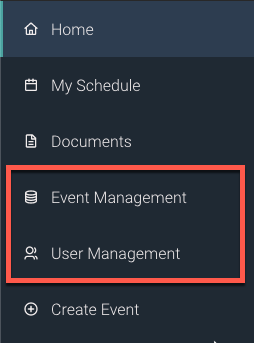




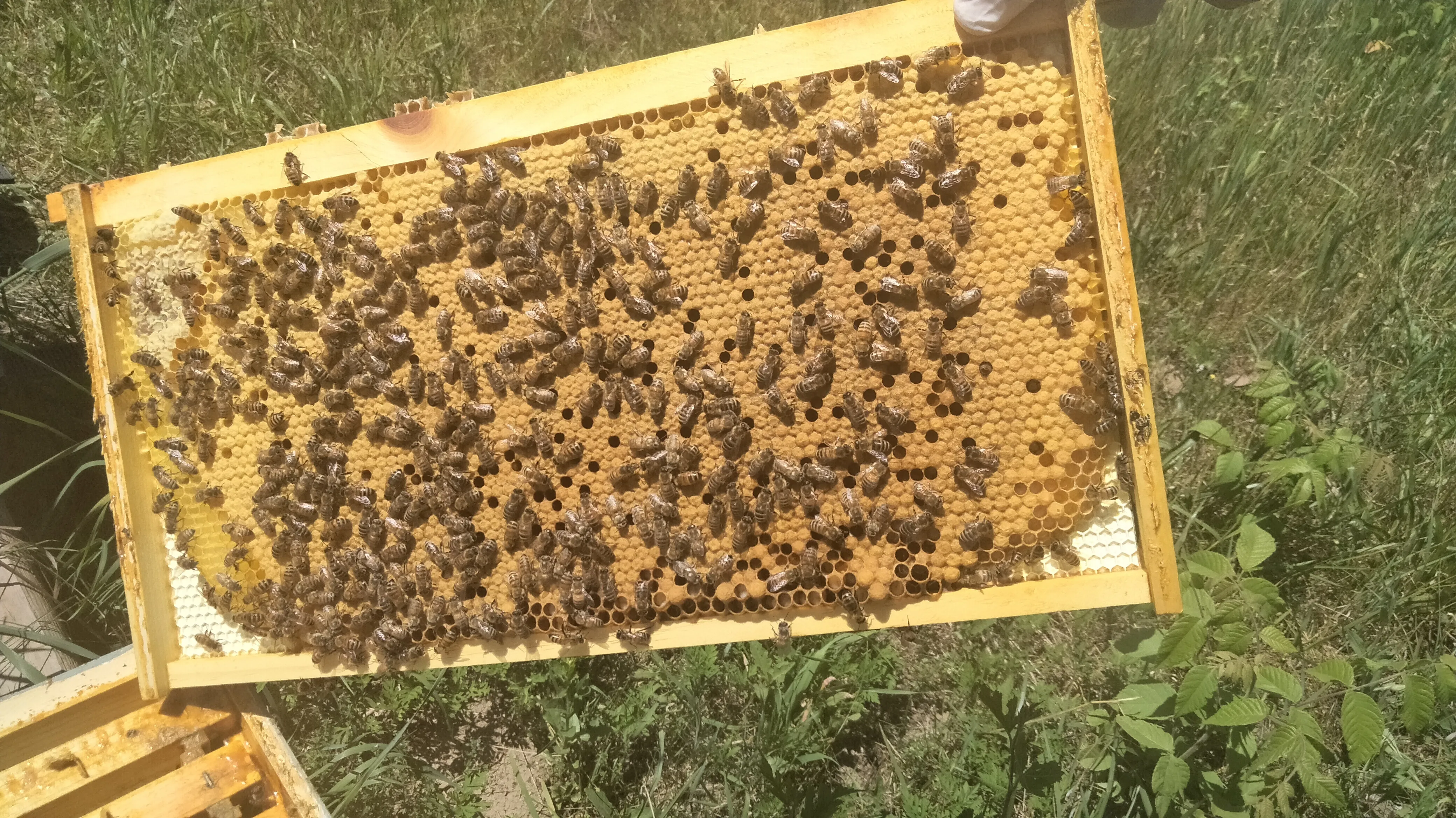


Thanks for making this, it is really effective, Plus you are saving me the trouble of figuring out Tampermonkey.
Suggestions/Wishes:
it catches img where alt is empty but not one completely lacking an alt. I believe this might work to cover both (?):
If I were to really dream, I’d like to toggle it on and off. Maybe an option click can undo the blur?