The biggest portion of the circle, the Why, defines everything you do in the unit. Before planning a single activity (or lesson), it is important to take time to outline what the students will be learning within the unit as a whole.
This guiding focus will bring consistency to your individual lessons and empower you to build more meaningful instruction. By outlining the standards, you’ve built a roadmap to help students to go from Point A to Point B in a meaningful - and much more flexible - manner.
If the standards are defined, where does flexibility come from? Here’s a chemistry standard I taught in Indiana:
C.1.5 Describe the characteristics of solids, liquids, and gases and changes in state at the
macroscopic and microscopic levels.
From a lesson-centric point of view, I can certainly work with this guidance. Maybe we do a lesson looking at solids, liquids, and gasses in the lab to compare and contrast properties. Then we could look at a PhET simulation and play with particle diagrams. Students would be introduced to the material and hopefully be able to describe properties on their own.
The problem is that I’m artificially limiting that exposure. I don’t know what questions students will ask leading up to that particular lesson. I’m also not thinking about bigger connections because the point of the lesson is to teach the single idea.
By outlining standards rather than lessons when planning a unit, themes begin to emerge. We can move away from teaching standard C.1.4 before we teach C.1.5. More importantly, it gives students a chance to define their own path in describing a particular piece of content. Having options for interaction rather than prescriptions - all within the scope of the outlined standards - gives students more autonomy and choice, which leads to more engagement.
Creating Outlines
There is no ‘best’ way to outline standards, but I’ve found it helpful to create simple documents for each unit I’m preparing. This focuses my attention and gives me one place to brainstorm ideas. I’m a paper-and-pencil first kind of thinker, so I have physical templates that I’ll scribble on as I work. It may also be helpful to print standards or write them on post it notes so you can quickly rearrange as you think, especially if you’re working with collaborative content teams.
If you’re teaching a single course, you really only need two boxes at this point: Standards and Themes.
Single course:
In collaborative planning sessions, look for common threads and throw anything relevant in. This is the brainstorming phase where ideas have equal vitality and worth. You can go back and refine later. Seeing standards on paper will help you set the big idea for the unit, so start at the highest possible level.
Multiple courses (cross-curriculuar):
You can’t begin to design coherent, innovative units unless you know exactly what you need to teach during that unit.
I find it’s helpful to verbalize a story. Why is one standard included, but not another? How are they tied together? What significance comes from the addition (or deletion) of one standard over another? If you’re unable to answer these questions or tie together a narrative for the unit, continue to work through standards until you have something you can articulate out loud.
Looking for Themes
When your standards are laid out and you can articulate a narrative, it’s easier to see common themes and threads. Try to stay away from restrictive topics like, “the 1920s,” or “cells and organelles” because they frequently limit the scope of thinking about material. What connecting ideas permeate all the standards you want to incorporate into the instruction? Brainstorm ideas. Bounce topics off one another. Keep a journal of interesting ideas to loop into other units or pull back in during a different course or even year.
Let’s take the chemistry standard again:
C.1.5 Describe the characteristics of solids, liquids, and gases and changes in state at the
macroscopic and microscopic levels.
This used to fall into my “Properties of Matter” unit (real original, I know). Instead of tackling this idea from a narrow materials perspective, it is rolled into a design unit. Why do we use particular materials for different applications? What industries rely on (or manipulate) some of these characteristics?
By opening up our line of thinking about how to incorporate a standard, our students can now take different paths to showing their understanding through lenses they define. It’s also important to remember that the unit or investigation you design might not fit every student’s interests. Knowing the endgame - seeing the big picture of the Why, will give you and your students flexibility in exploring different ideas.
What Now?
The meat of your work is getting standards aligned. Rather than dive into day to day activities (where we’re all comfortable), map out a sequence of units or even your entire year. If you’re in a district that has a scope and sequence laid out, use that as a starting point.
Standards-alignment helps you see the big picture
Tell a story with the standards. Think about flow from one idea to another.
Identify potential themes or topics that include - but are not exclusive to - the standards you’ve identified.
Familiarizing yourself with the standards that are taught in each unit will help you open up different avenues for student learning. If you’re struggling to articulate why a particular standard is included, move it! You’re the architect of the course - you have freedom and leeway to design something meaningful for your students
In the next post, we’ll look at the How of unit design. How will we assess and evaluate student learning within the context of the Why?
The idea for this series was sparked when I was helping some people research sample flipped lessons for a curriculum workshop I was facilitating. I was embarrassed while working with this teacher because most of what we found was significantly below standard.
That night, I did some more searching and I leafed through page after page of Google results of substitution-level implementations of flipping. Lessons that came up in the search were roughly:
Video for homework, quiz the next day.
Video for homework, worksheet the next day.
Video for homework, lecture the next day.
What I could not find were resources on designing effective and powerful lessons for flipping, let alone units.
This is a problem.
Planning
In my early years, a unit was simply a sequence of lessons around a central theme. Essential Questions guided my day to day work, but instead of focusing on content standards as a baseline, I relied on thematic relationships. At the time, I thought I was giving myself freedom to explore related ideas no “prescribed in the curriculum.” In reality, I was making more work for myself as I pulled ideas in without a guiding framework. On top of cherry-picking pieces of content within a unit, I was trying to flip everything. That meant making videos and corresponding materials to help my students in their learning. The majority of my work was focused on lesson preparation and the overall unit structure was left to nothing more than the sum of the parts.
Flipped Learning has been around long enough for most people to have heard about it if not researched it for themselves. Sal Khan’s 2011 TED talk is a firestarter for conversation among teachers and administrators looking for methods to jumpstart some innovation. Jon Bergmann and Aaron Sams have published a number of books about flipping at the classroom level as well as for particular subjects. Others like Crystal Kirch, Troy Cockrum, Robert Talbert, and Ramsey Musallam have written books (all linked) about their implementation strategies teachers can model as they begin to explore.
The Gap
There is a significant information gap when it comes to learning about how to successfully implement flipped practices. In a culture of Google results and “power skimming,” most implementations begin - and end - with finding or recording lectures that students watch at home and then “apply” in the classroom.
At it’s worst, the teacher becomes a non-essential mediator of student YouTube binging. At best, the teacher essentially resets the clock on student work, promoting passive listening and devaluing the net positives that can be gained in a classroom setting.
Sherry Turkle explores the advent of using technology to engage today’s “disengaged” students in her book, Reclaiming Conversation. Her point is similar - rich classrooms come with discussion and interaction. Savvy and intentional course design is key in promoting this interaction. Flipped Learning can help you build that culture, but only if you’re prepared with the right instructional tools.
So, our question: When you’re asked to design a lesson, where do you start?
Like many, you may identify your Big Idea and Essential Question for the day (don’t forget to put them on the board!). Then, you’d outline your instruction and some guided practice strategies after which you can assess student understanding of the material.
Lessons are easy. As a teacher, you’ve been crafting lessons since your undergrad years. Over time, they may be refined or updated, but planning is typically spent looking at a calendar, outlining day to day activities.
When you design from the top - starting with the biggest ideas and burrowing down through assessment and lessons - you are rooted in the main ideas. Those themes permeate everything your students do, which leads to more opportunities for exploration and discussions on related topics. You won’t need to think about every contingency to engage students when they lose interest because students will define those topics themselves.
Bubbles
Our worldview informs everything we do in the classroom. “The medium is the message,” the adage goes, and it’s particularly important to remember as you begin to incorporate video (or other media) into your instructional habits. The idea of an asynchronous introductory event is not a common experience for most of our students. How will it communicate a shift in the typical learning cycle?
Our bubbles are strong. Our brains work hard to fit new experiences into existing schemas. When they don’t fit, the schema is broken down and rebuilt. Working in a flipped environment will certainly break your students schemas about learning. If your schema for instruction isn’t being broken and rebuilt as part of the process, your wheels will spin.
The Big Picture
To address the shortcomings of planning effectively for flipped material, we’ll be using a modified version Simon Sinek’s “Golden Circle” to plan out a holistic unit from the top down. If you’re not familiar with the Golden Circle, here’s a diagram:
The Golden Circle is meant to help organizations determine their core mission. In many cases, employees (or teachers and students) can quickly answer What it is they do every day. For example, a Microsoft employee would say they make software. A student would say they’re learning about the Revolutionary War or linear equations.
Most people, however, can’t answer the “Why” nearly as easily. Why does Microsoft make software? Why are linear equations taught in school? Sinek’s argument for the corporate world is that by answering the Why for your clients, you stand out - you become unique and a cohesive and productive culture develops.
Schools are not businesses, but the principles of the Golden Circle can be applied to curriculum development. How do we transfer corporate descriptors to the classroom?
WHY: Standards, essential questions, outcomes.
Defining the Why in your curriculum is step one. It sets the tone for the entire course, defining the end results for students. Knowing which standards, essential questions, and outcomes you have for student at any given point keeps your instruction on focus as you plan. Looking unit by unit helps you tell a story to your students - it provides a cohesive overview of how things relate to one another.
HOW: Assessment(s)/capstone event
Once you know why you’re teaching what you’re teaching, you need to define how you’ll know what students have learned or not learned. Step two in Understanding by Design calls this “Assessment Evidence.” What tasks will students complete in order to show what they’ve learned as you move through the unit? Keep in mind that this does not necessarily have to be a written test!
What: Lessons, day to day
You’ve defined the Why and you know How you’ll be evaluating student growth, now you can start to think about the day to day work. Every single thing you plan for your students should support their growth toward showing what they know (the Why) and How you know they know it.
In our application, we’re going to put the Why at the outside, exchanging it for the What:
This Golden Circle hangs on a wall near my desk. It’s a visual reminder as I work with teachers to build units of instruction. Everything defined in the unit is nested and related: all of the What is measured and related to the defined Why. The idea is to root our planning in practices which focus on teaching standards with authentic and meaningful opportunities for assessment.
Admittedly, the visual analogy isn’t perfect because usually, when a dartboard is involved, you’re shooting for the bullseye. We need to get to the what eventually, but it’s always within the context of what’s around it, the standards and assessments.
Each post in this series will dive deeper into designing units of instruction rather than flipped lessons. Comments, suggestions, and feedback are always appreciated.
Long story short, I moved from self-hosted WordPress to a static HTML site generated by Jekyll.
WordPress does it’s job really well. I think there was some statistic [citation needed] that showed nearly 30% of the Internet runs on WordPress in one form or another. That’s a lot of the Internet.
But, because of ubiquity, there is a significant drawback: WordPress sites are prime targets for malicious code and hacking. A plugin on my site shows how many dozens (and sometimes hundreds!) of login attempts there have been. It’s a battle to make sure security plugins are always up to date. That leads to other issues: incompatibility with plugins.
So, This entire blog - 2018 all the way back to 2010 - is a set of static HTML pages generated by Jekyll on my Reclaim Hosting server. No more logins, no more plugins to check and update. Just nice, clean, lightweight HTML.
It took me several weeks to work out the details for the migration. It wasn’t too bad, but I learned some things along the way that I’d like to share here.
Exporting WordPress
Jekyll uses Markdown and YAML data to generate a website. It’s quite clever how they pulled it all together, actually, to mimic a typical dynamic (database-driven) blog like WordPress. There is a plugin which will export your WordPress blog formatted for Jekyll, including all post metadata like tags, permalinks, and image resources. It gives you a .zip file which you can then extract and use to populate your new Jekyll site.
First, it extracts your entire media library. WordPress automatically generates several files for each image you’ve uploaded for different display situations. My media folder was well over 300 MB because I didn’t take the time to clean the library up. I’d suggest cleaning up any unused image files before the export.
Second, any pages you have on your site (not blog posts) get their own folder. Take time to go through each folder and make sure it’ll fit the Jekyll file structure.
Finally, do a regular WordPress XML export so you have an entire backup of your blog. The Jekyll plugin only converts posts and pages. If you have other resources, you’ll want to save them somewhere before deleting or redirecting your site.
Hosting
The great thing about Jekyll is that it is ready to go with GitHub Pages. If you’re already using GitHub, you can go that route with your username.github.io account with a single commit and push. I have a lot of traffic (humblebrag much?) to blog.ohheybrian.com already and I don’t want to set up a redirect. I’m also already using my GitHub Pages site for my (web apps)[https://dev.ohheybrian.com]. You can map a custom domain to GitHub Pages, but you cannot use HTTPS on that domain, which was a dealbreaker for me.
Each web host is different, so you need to see if yours supports Ruby 2.4 or higher. Lucky for me, Tim Ownes from Reclaim Hosting already had a blog post on setting it up with my Reclaim account. I followed his instructions to the letter and got it working on the second try (I borked some theme and file structures on the first, so I deleted everyting and started over).
SSL is a big deal. If you don’t know what it is, read The Six Step “Happy Path” to SSL by Troy Hunt (or anything else he writes, honestly).
Comments
I don’t get a ton of comments, but with a static HTML site, there isn’t an easy way to include comments. If you’re hosting with Github Pages, Staticman is an awesome and secure way to include comments on your posts. Another option would be to use a third-party tool like Disqus. I didn’t go with Disqus because they’ve had some trouble with clean use of user data in the past.
I decided to create a custom commenting form (based on this post) using Firebase. It’s a real-time database run by Google which can push information anywhere I want it to go. Each post has a query to the database to check for comments. Pushing the comments to the database is handled with a little bit of JavaScript, which I’ve modified from the linked tutorial:
Firebase also includes cloud functions that can be written in Node JS. I’ve never written any applications in Node, so this was a learning experience for me. This function watches the comment database and simply notifies me if a change has been made using the following script:
It could definitely use some refinement, but it does what I need it to do.
Updating
Relying on an Internet connection to write a blog post seems so 2012. With Jekyll, I can write in any text editor and then upload when it’s ready. If I’m on my main machine, I can even serve the page locally to see what the update will look like as if it were live on the web. It’s a small perk, but as I’ve moved to working more and more with text files (rather than things like Google docs) it’s nice to be able to open a blank text file and start writing. I can come back whenever I want and finish up or let it sit on the large pile of started-and-never-finished posts.
Conclusion
In the end, this is a highly technical shift away from something built for the end user into something I have absolute control over. If the blog breaks, it’s my fault and I will have to work to fix it, which is satisfying in its own nerdy way. It’s definitely not the easiest route to start (or continue) blogging, but it’s mine, which is fulfilling.
If you’d like to know more about how to make a switch, feel free to try out that nifty commenting section below or just write me an email: brian [at] ohheybrian [dot] com.
I’m part of digital-only secret Santa exchange. It’s a cool idea…you’re assigned someone you may (or may not know) and tasked with coming up with a free (or very cheap, ~$5) digital gift. Some ideas were things like creating customized Spotify playlists or blog lists, creative portraits of the person from images you find online, to recipe or book suggestions.
After snooping out my person, I found that they really like being outside, but they’re a programmer by day. So, I decided to throw together a little Chrome/Firefox extension which replaces their new tab page with a randomly-found picture from Flickr.
Originally, I hardcoded tags that would always return an image of a forest. I decided that wasn’t much fun. What if they wanted to look at a beach that day?
So, I tapped into Chrome and Firefox local storage. You can input some tags (comma separated) into a simple form and hey presto! The image changes. It will use those tags with each new tab load until you change the tags.
I’m pulling the large image (1600px on the longest side) and every now and then an image fails to load. I don’t know of a good way to preprocess for missing image URLs yet. Plus, I did this in a two-day blitz. In good fashion, each photo is linked to the original file in Flickr at the bottom of the screen so you can go and give it a fav if you’re a Flickr user.
I thought I was ready for some beta testing of the Slide Tweeter AddOn. Unfortunately, I’ve run into a snag with authenticating some of the code.
When you install and Addon from Google, it’s in something called AuthMode.NONE which significantly limits access to certain data. This is a good thing because you don’t want Addons running through your account changing things the minute you install it. Anyways, once it’s installed, you can then prompt the user to enable the Addon, which gives it access to all the necessary permissions.
I’m working on moving permissions around so it installs and adds a menu successfully before activating the Addon. It’s turning into more of a trick than I thought it would.
A beta version of the Slides Tweeter AddOn will be ready this week. Two major updates helped get it to this point:
Google changed the URL pattern for the thumbnail image, meaning I can grab a much smaller file which greatly increases the speed of the AddOn. Most tweets are posting in less than 20 seconds. Currently, the AddOn is grabbing a 500px wide image, but I may bump it up to 700 or 800px to see if I can squeeze a larger image without the loss of performance.
I’m using the PropertiesService function of Apps Script to store the active Slides ID and title. When I first built the proof of concept, I didn’t need to store IDs because I could access the getActivePresentation() property directly. As an AddOn, I need to open the presentation by ID to make sure the correct one is being opened at any one point. This also allowed me to set the webapp as a static address, accessible by anyone using the AddOn. No data is pushed to the client (browser) other than the images of the Slides, so no data is exposed.
To make it easier, I updated the initial UI slightly. Here’s the updated launcher:
2017-11-29_22-17-49″ />
The title and hashtag are customizable, the ID field is not. There is still a little tweaking to do to ensure the player launches correctly every time.
If you’d like to be whitelisted for a beta, fill out the form below. I’ll follow up directly via email once it’s ready.
Note 2024-03-20 - This post has been updated with a correct video embed as well as a GitHub Gist link for the source code. The code has not been tested since ~2018. Any changes to th Bit.ly API since that time are not accounted for in this script.
If you have a bit.ly account, you can get a public API token which can be used to create shortcodes. This is really handy in my situation, where I’m creating a ton of feedback spreadsheets (another monster post on that later). Using a small code snippet, you can create a feedback form, throw in some code, and have it display as a short URL and QR code.
If you’re starting from scratch, create a template form and spreadsheet. When you need to make a feedback form, use File > Make a copy on the spreadsheet to copy over the code.
Otherwise, you can make a copy of this blank template to get started (code is already inserted). If you’re going to make your own, be sure you have a form linked. If there is no form on your sheet, you’ll get an error.
The code
The full source code is shared in a GitHub Gist. Note that there are two files: one called Code.gs and one called popup.html. If you’re copying/pasting, you need to create an HTML file (File > New > Html file in the script editor) and call it ‘popup’.
An app called Keynote Tweet has been around (in various working and non-working states) since the late 2000’s and let users auto-tweet images of their Keynote slides during a presentation to a hashtag or stream. Google released the Slides API this year and one of the API methods allows you to get a thumbnail of the image which can then be sent to other applications. You can see an example of this in a slideshow now by going to View > HTML View. It opens a tab with slide images embedded in plain HTML formatting. Since we can now get the image, we can start to push them out to other platforms with Google Apps Script.
This post is going to be technical in nature and is really meant as a proof-of-concept. I’ll explain some of the shortcomings of this implementation in context. The code is broken up into several chunks and the entire source is posted to GitHub.
Setup
First, the Slides API has to be enabled in the Google Cloud Console. Once that’s done, getting the thumbnails is pretty easy.
Off the bat, the API doesn’t have event triggers like the Forms, Sheets, or Docs. I wanted each slide to be tweeted as the presentation advanced, so I needed a custom presentation view. To get this to work, I wrote up a web app presentation window served by Google’s HtmlService.
This simple HTML page requests and displays the slides from an array created by the backend. There are some controls that hide on the bottom of the screen and a position indicator in the top right. Hover the mouse and they’ll pop up for interaction.
Issue 1
The initial page load for the web app varies depending on the size of the presentation. The request for slides on line 37 fires as soon as the document loads in the browser. The loading GIF is replaced by the slides when they’re returned.
The slide thumbnails are returned as 1600×900 pixel PNGs, so they’re big, which increases load time. There is no way to specify the size of the image returned at this point.
Each slide is sent as an image on a tweet as they show is advanced and has posted class added to prevent multiple tweets of the same slide. The “previous” button does not trigger a tweet in the event you go backwards.
I used Martin Hawksey’sTwtrService library to connect my Twitter account. He has a detailed post on how to connect and use the library, so I’m not going to go through that here. This is also where the second major snag comes up.
Issue 2
Google recommends not using libraries in production code because they can negative impact on script runtime. This is especially apparent on the first slide in this script – it times out frequently (3 of 5 times?) and I’m not sure why. Subsequent slides come in between 20-50 seconds, which isn’t terrible, considering the image size being uploaded. But, if you’re a fast talker, this won’t be able to keep up unless some kind of queueing is implemented.
To do this without a library, the OAuth flow needs to be incorporated into the main script. It’s beyond my ability at the moment, so if you’d like to contribute that component and help this run as a standalone app, you can do submit a pull request on the GitHub repo.
Tweeting
Sending the tweet is actually a two-step process. First, the slide thumbnail is posted and then the media_id assigned is attached to the tweet. This is all done on the Google Apps Script side of the code to account for security considerations.
Google’s thumbnail is generated and hosted on their server, so I used the UrlFetchApp to request the content as a blob. This is serialized data that can be passed on to Twitter’s image hosting service.
Once the image is uploaded, we can take the returned media_id string and attach it to a tweet. The Twitter API object for a tweet has a number of options, but all I’m using is status (what you’re saying) and media_ids, which takes the image ID string from the upload.
Right now, the string is hard-coded into the script. This could be set via the Apps Script UI tools if this gets turned into an AddOn at some point if I can speed it up.
Issue 3
Twitter requires a high degree of authorization for posting. I tried implementing the OAuth flow without using a library to speed up performance, but I couldn’t get it to work. TwtrService stores the app credentials for the OAuth flow and has both an upload and post method that make the tweeting easy. But, performance varies for 20 seconds to as long as 300.
Conclusion
The app works, which was exciting to put together and see. It’s a function that would be great in a number of situations and implementation will only get better as the Slides API improves. I’d love to work with someone with more experience to speed the API calls up significantly by including all the necessary authentication in the main script rather than in a library. If you’d be willing to contribute, the source code is on GitHub.
If you’d like to play with it, you can either copy all the files from GitHub or copy and paste the separate embeds here into an empty project. Add postTweet and getThumbnails to the code below.
Audrey Watters shared a Bloomberg article this morning on Silicon Valley-based AltSchool which is closing locations to focus on “strategy” and a “path to growth and finances.” It’s a glaring admission that Silicon Valley money and “vision” have nothing to do with bettering education for students.
Interestingly, the last paragraph of the article highlights what we already know about improving schools, almost as an afterthought:
Although the company touts the magic of its technology, two parents said their children benefited more from the extensive attention of talented teachers and small class sizes.
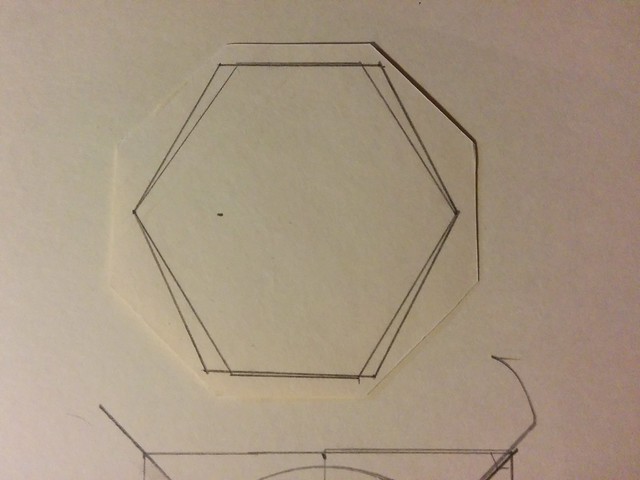
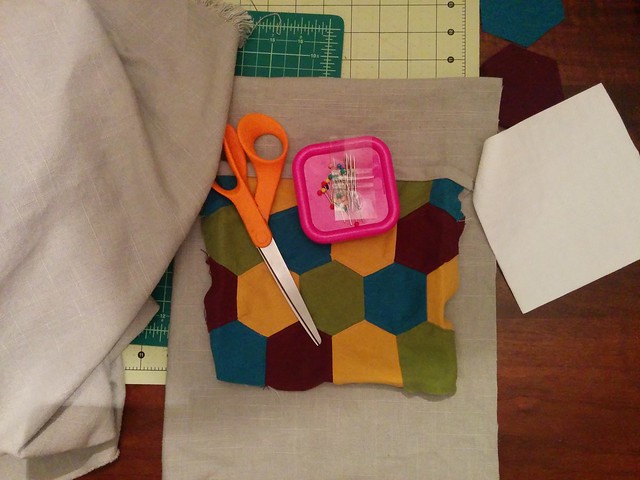
My wife is putting together a simple gift for our niece. Lest I spoil a surprise, I’ll be vague about the specifics. It required some hexagons. We started, logically, with an octagon.
I approached this mathematically. Find the midpoint on one edge, work an equal distance out either side, then connect the dots. Bam.
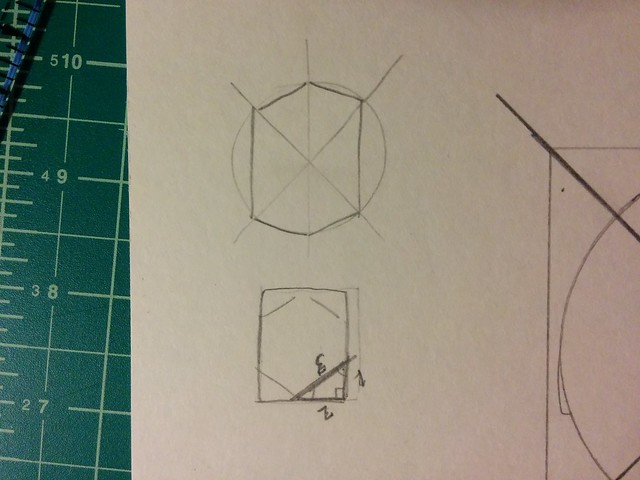
So, I moved to a circle that represented the diameter of the octagon pieces. Well, a circle was hard because I didn’t have a protractor to get the angles right. So, I moved to a rectangle with some right triangles taken out.
Well, with no protractor, it’s hard to draw a 120 degree angle. I could do a mean 45 with the quilting square, though.
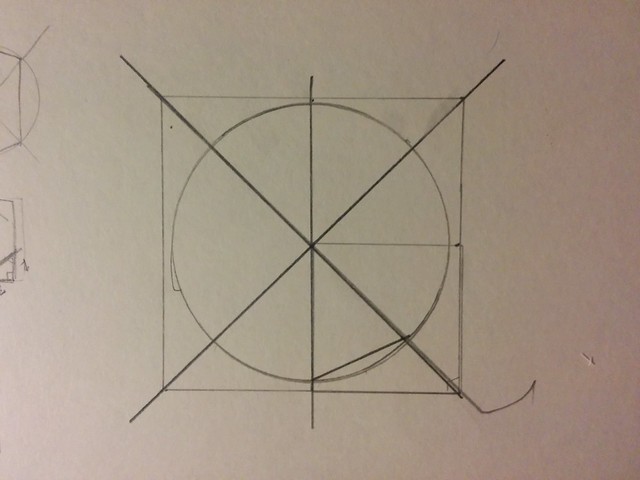
Admitting defeat, I jumped to the Google and found a number of posts by searching, “draw regular hexagon.” The image searches were promising: one linked to a post from New Mexico State University which described how to draw a regular hexagon using a circle and a compass.
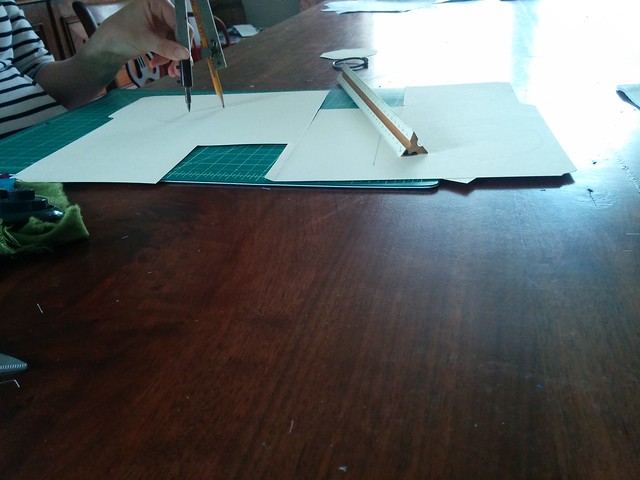
I went out to the garage and found a compass my grandfather probably had since before I was born that I snagged while cleaning out mom and dad’s garage last year. It sat contentedly in our garage until called upon, after which it performed wonderfully.
This provided me a quick reminder on the mental dissonance between thinking I know how something should work and being able to describe how it actually works. The best thing is that the number of points on the circle is infinite, as long as the radius is known. The more points I draw, the closer I get to another circle. This blew my mind in Flatland, (apparently, there’s now a movie?) and it blew my mind again when I did Saturday afternoon.
We’re on our way to one sweet gift (all planned and executed by my talented wife).
– Articles and websites announcing badge initiatives at K12 peaked in 2014-2015. I haven’t found many articles from the last two years.
– Many (seem to have) started with schools who had a high level of teacher buy-in for PD to begin with. Building the drive for development took place before badges were introduced.
– Most of the programs started as a way to (seemingly) expose teachers to different software and programs they can use.
– Very few of the programs required evidence of implementation along side reflection on implementation. Most implementation evidences were photos or videos of you using the app/program/thing with students.
– No site talks about benefits for completion other than being given a [adjective] digital sticker!
I’m not convinced badging/credentialing is a bust. I’m more convinced that programs that offer long-lasting value for teaching staff are elusive and take careful planning. It’s also apparent that consistent implementation through support and updated offerings is difficult. Having a staff who is able to meet the shifting needs of a district over multiple years is key. It’s also going to be important to have a very clear mechanism for evaluation of change in instruction because that’s the component that benefits students.
I have several Google Sheets doing several things on their own through Google Apps Script. I’ve started to make it a habit that each action is logged to a separate, isolated spreadsheet so I can pop in and look for error messages in one places rather than several.
This poses a small problem. I have to actually remember to open that sheet. Usually, something goes wrong, and then I remember to check the logs. I wanted to have something more up to date that I could glance at without too much effort.
You can get Google Sheet data as JSON which is handy in a number of contexts (here and here are two examples from my own work). It’s not as straightforward as tagging .json on the end of the URL (though that would be sweet) but the process isn’t hard. To get the data, this post details how to publish your sheet and find the feed.
Once the dataset was live online and updating regularly, I needed to decide how to get it. I use GeekToolon my desktop so I decided to use a Python script and the Responses library to gather and process the feed.
I put this into a Geeklet on my desktop and voila!
Give it a try with your own sheet. You can run it in your terminal to get a printout of the last 5 entries of the sheet. The JSON output from Google is really weird, so it helps to put it into a prettifier to make it more readable before parsing keys.
The DeVos DOE and Indiana education politics continue to lead the way in removing resources from public institutions to funnel them to charter programs.
Hoosier Virtual serves 1,800 students. It has been marked as a failing school on our state evaluation system for six years in a row. If this were a public institution, it would have been put under state oversight and continued to operate on an improvement plan. But, because it’s a charter program, it’s shuttering in June 2018. One of the school board members for Hoosier Virtual is a political appointee of Mike Pence to the Indiana State Board of Education.
Google Slides got a big update from Google this week, notably the inclusion of AddOns and Apps Script functionality. The UI updates are nice (grid view, skip slide, etc) but the real power and extensibility of Slides through GAS allows for connection beyond the immediate audience.
Some ideas I know I’m going to play with:
– Auto tweet images of slides through a presentation to a hashtag
– Update slides with data/charts from a spreadsheet so data is always up to date
– Auto-generate photo slideshows from a Drive folder of images
I have a Google Sheet which displays all upcoming PD in the district. It also tracks registrations for people through a web app. I’ve documented that in other places, so I want to focus on an easy method of calculating days until an event to use as a script trigger.
This started because teachers were looking for an automated email reminder a few days before the workshop so they didn’t forget to come. I’d rather they get a Calendar invitation when they register for the event, but I ran into some authentication snags, so that aspect is back burner for the time being. Currently, the sheet is using today’s date and the date of the workshop to trigger an email four days in advance.
Calculating the “days remaining” is pretty easy. The cell formula is:
– ARRAYFORMULA applies formulas to a range of cells rather than a single cell. Saves me from having to copy the formula down to each new entry.
– ISBLANK checks for data in a cell. Because it’s inside ARRAYFORMULA, it looks at the cell in the matching row. If it is blank, TRUE is returned.
– ROUNDDOWN rounds a result to a whole integer. This is useful because the subtraction taking place inside the formula returns a large decimal. This makes it easier to test in the script.
– NOW gives the date and time when the sheet is updated. Any time you make a change, NOW is calculated.
– The IF conditional keeps the sheet clean and wraps everything up. The syntax is, IF(_logical test_, _value if true_, _value if false_). So, this reads, “If the cell column B for this row is blank, show nothing. If it’s false (is not blank), calculate the difference between the PD date in column B and NOW.
The core of the function is the count down calculation. For instance, today is Friday, September 8. Subtracting it from a date in the future like Monday, September 11, returns a whole integer: 3. I can test for that integer (or any integer) in a simple script.
This is particularly helpful with timed triggers in scripts. I have a utility script wrapped in a conditional:
“`
if(date === 3) {
// do something here
}
“`
If the condition isn’t met in the script, nothing happens and I don’t get a failure email notification. This is also nice because if I want to adjust the timing, the trigger can stay the same (daily, for instance) without changing the codebase.
Outsourcing education doesn’t look like robots taking over our classes. It happens when we willingly turn over the tasks of teaching to machines without thinking through implications or repercussions thoroughly.
Computers are really good at a lot of things. Media companies are also really good at a lot of things. When the two really teamed up in the late 90’s/early 2000’s with the Internet becoming more consumer focused, there was a big shift in the way the Western world – in particular Americans – interacted with media. The move from producer to consumer started in the 50’s with television becoming more ubiquitous and speed-of-light imagery took over our visual world. Information was available instantly through the telephone, captured on film and broadcast to us in the comfort of our homes.
These films ultimately made their way into the classroom and mixed media instruction, the precursor to “edutainment,” became an expectation. With the computer revolution of the 1980’s and the shift of entertainment into all areas of life (political and social, in particular) education was soon to follow suit with educational films and games that focused on the entertainment aspect and not so much on the educational component. The teacher was starting to be outsourced because content should be now, decontextualized, and consumable in a comfortable amount of time.
The growth of EdTech in the late 2000’s has pushed this boundary even further. Teachers are no longer consumers – they’re “ambassadors,” focused on serving students with some perks on the side. Content can – and should – be outsourced because information is available in all of our pockets. Why should I, the teacher, be focused so much on the curriculum when I need to focus on the experience my students have?
Neil Postman paints the early days of edtech in Amusing Ourselves to Death. It’s stark, reading this book 21 years after its original publication. Postman devotes an entire chapter to the trend of entertainment-as-king in education and his predictions ring true.
Yes, teachers are undervalued, scapegoated, undersupported and treated poorly all around today. Our classes are large, our schools and policies can be suffocating. We lack resources, time, and frankly, pay, to accomplish impossible tasks set before us. Yet we show up every morning to continue the work. (I won’t raise teaching to the realm of nobility because that comes with it’s own set of problems.)
Outsourcing is subtle and often overlooked. We want lessons to be memorable. We want to provide the best experience possible for our students. There is nothing wrong with that goal. The problems come when the means to achieve the goal sink to places which ultimately continue the cycle of devaluation of the profession.
Highlighted recently, the frequency of product “ambassador” programs which throw perks to teachers in exchange for recommendations (and even students as guinea pigs) has grown exponentially. Companies promising to revolutionize learning are taking advantage of a cultural bias against teachers and feel like they’re providing a service.
We’d be well suited to remember that if software is free, you, and by extension, your students, are the product. The freemium model is dead and to stay open, these companies need customers. Arguing that providing a few, all-star, typically already privileged teachers with resources in exchange for “some feedback on a product” is an attempt to hide what is really happening – willing participants in corporate strategy and market gains. Why focus on perks? If the value a teacher ambassador brings is so great, pay them for their insight and time.
From Amusing Ourselves…
…We delude ourselves if we believe that most everything a teacher normally does can be replicated efficiently by a micro-computer. Perhaps some things can, but there is always the question, What is lost in the translation? The answer may even be: everything that was significant about education.
Outsourcing ourselves in the name of efficiency or engagement sells short the role of teacher. Focusing on the authentic “as-is” nature of learning is always a better option that the more efficient, computerize, compromised classroom. Recognizing that edtech companies and teachers have different goals is also important. Companies exist and function to make money. Period.
Teachers exist and function to make better people in the world.
Postman called this out in 1986. No one listened. 21 years later, are we ready to listen?
—
This post was written immediately after finished Amusing Ourselves to Death. Ihighlyrecommend picking up a copy to read.
The nuances of digital teaching and learning are often lost on Twitter and off-the-cuff blogs. Posts long enough to explore some of the finer points of teaching and learning today are often skipped over as being “too academic” or “too heady.” Nope, those posts aren’t written for teachers “in the trenches.”
I’ve moved fully into a coaching position with my district. One of my primary goals in this role is to help teachers digest and process what it means to teach effectively, equitably, and responsibly in a digital world.
We cannot separate ourselves completely from bits and bytes. The Internet has gone from being encased in phone lines to flowing in, around, and through us all day, every day. The Internet used to be hard to use. Now, it’s an expectation that it’s just there. The change in availability and usability means the user base increases exponentially while understanding of the mechanisms for use decrease.
With the explosion of online “learning media,” it seems that teaching can be boiled down to engaging videos and the right entrepreneurial mindset. The personal branding narrative of edu-Twitter and edtech in general is a byproduct of the deconstruction and dissolution of structured debate and discussion about solid pedagogical practices.
Intentionality in Instruction
Popular posts in the edu-blogosphere inevitably come back to teachers leaving the “sage on the stage” role to become a “guide on the side.” The sentiment rolls off the tongue and it makes us feel good about making connections with students. But, it lacks the nuance necessary to have any kind of significant conversation about the differences between didactic instruction and active learning.
We have set up a false narrative. I do not have to remove myself as an expert in teaching and learning in order to make connections with students or allow them to explore their interests. The guide-as-greater narrative attempts to make the case that we are partners in learning, but not without the devaluation of a profession as a whole. As a result, schools are throwing students into virtual credit programs led by a single teacher at a dashboard and equivocating it with an in-person experience down the hall.
Sherry Turkle calls this out in Reclaiming Conversation in a chapter focused on changes in education practices which have shifted as a result of prolific digital resources. She doesn’t go so far as to say that Internet-ready tools are destroying a generation but she does call for specific behaviors to change on the part of developers and users alike.
Her most poignant observation was calling out the difference between the natural, as-is instructional setting with the digital, as-if representation. When students are working in the same space – conversing and collaborating with one another, they are experiencing community and content in a real way. “The message is the medium,” as they say, and when we connect teaching and learning with very human interactions, the content gains new relevance.
As a teacher, it’s still your responsibility to construct a learning environment where context lends relevance to the content, whether it’s through constructionist work or through direct instruction. Without intentional preparation and implementation, digital or tangible, instruction suffers.
Finding the Proper Place
Andy Crouch offers insight on technology being in its proper place in his book, The Tech Wise Family. He opens with a story about blitzkrieg cleaning when his children were young. Anything out after 10 minutes was either donated or trashed. (He tells a story about dangling favorite toys over the donation bin to speed things along.) The point being that a house is out of order when things are not in their proper place.
In the classroom, we make proper place decisions about everything, it seems, except for technology. Since we have it, the edu-Twitter cultural push is to use it all the time. Need to do an assessment? There’s an app for that. Want to encourage collaboration? Use this website. Ditch your books for Google because “they’re out of date the minute they’re printed anyway.” The suggestions for technology uses for teachers starting out on this path are wholesale and without nuance and it’s hurting educators across the world.
Technology is not taught in its proper place, and that is a problem. Just like intentional instruction, technology use has to be hyper-intentional. We’re seeing this right now as we move into year one of a distributed iPad rollout in our district. The iPad (or Chromebook or Surface tablet or Linux machine) can be a powerful tool for learning but only when it is in its proper place. Students need to be taught to use the hardware as an instructional aid. Teachers need to be taught how to design units and lessons which intentionally place technology in spots where it can be used for powerful purposes. It requires a cultural shift for all parties.
For teachers, it is much more than taking a plunge into paperless classrooms, making sure they’re a part of every Twitter chat they can get in on, and starting a blog. It’s important to remember that we are training future adults – we have to keep the long game in mind. Using some gimmicks now to keep students “engaged” for the day is robbing them of a life skill which can help them function as adults. Some growth may come through chats and blogging (my own growth included those things) but not without recognizing that they aren’t required for change to happen. Instead of making flat recommendations about what people should do, we need to be approaching these conversations from our personal perspectives, telling stories of what worked – and, more importantly, what didn’t work – as we grew.
Reading and Writing for Nuance
Another component of my work is staying on top of what teachers in the district are reading and talking about. I noticed our central library had a number of copies of Ditch That Textbook by Matt Miller. I grabbed a copy so I would be able to carry on a conversation with people who have read it.
If there is a book that exemplifies a lack of nuance, it was Ditch. Much of the book can be boiled down to:
– Join Twitter.
– Use Google Apps [G Suite] religiously
– Talk about how awesome you are now that you’re on Twitter and G Suite.
Each chapter up until Section 4 – page 197 – read like a blog post pushing a thin implementation of tech for poor reasons. For example, much of the first section talked about the power of being paperless without really diving into instructional effectiveness. As I read I tried to highlight simple suggestions written as if they were the best solution to a particular problem in the margins. My intent is to go back through and try to identify instructional situations where those suggestions are relevant to give context to teachers looking for help in school.
The difference in tone between books that were all taking on the same topic is stark. Segmentation in a market (education is a market, after all, and edtech is a particularly lucrative submarket) and these books speak to their particular audience. After three months, I’m focusing on ways to bring teachers from the realm of edtech sex appeal into technology-rich instruction with fidelity to nuanced practice.
Making the Transition
I realize that some of the judgements I’m making are not fair at face value. I’m also very aware that changing practice takes a long time, especially if you’re searching for methods to change on your own without support. But, I’m not convinced that the path most teachers follow through the edtech regions is the best, or only, one.
The discrepancy between these books is stark. I don’t disagree that the more exciting changes come from trying apps and tools because they show off well. Changes in philosophy are harder to show in a Tweet and even harder to process and make essential in our day to day goings on. As a coach, it would be a disservice to not push teachers for the philosophical shift in everything I do, even through the lens of using a particular tool more effectively.
This is the spot when I would offer a handful of poignant, but not heady, methods for making the shift.
I don’t have any.
This is an intensely personal process. It requires reflection and relationships. The goal for teachers, in any case, is the same: improve teaching using resources intentionally.
Edtech preaches a wholesale shift away from the tangible in favor of the digital. Deniers push back with a deep-seeded reluctance to discuss new ideas or methods. I’m convinced that proselytizing either approach, while good for personal branding and making a name for yourself, is ineffective in the long run. Reading with a critical eye, looking for statements in absolutes and ultimatums, and thinking beyond short-term gains make the difference.
I did a Google search for “bullet journal” and I was down the rabbit hole. After a lot of reading and clicking, I agree with Robert’s initial assessment: most posts are about making your notebook look just right instead of working just right.
I’ve been playing with the bullet journal (you’ll see it called a bujo on most sites…I refuse to use that term) idea for a couple months and I now have a system that works really well for me.
One complaint about the journal is that it cannot possibly hold all the tasks that need to get done day to day, quickly becoming laden with redundancy and non-helpful pages. To mitigate, I use my digital todo list to manage the small tasks (which is actually one of the lessons in Getting Things Done) as a part of the larger project. The todo list helped me with the parts, the bullet journal helped me get the big picture under control.
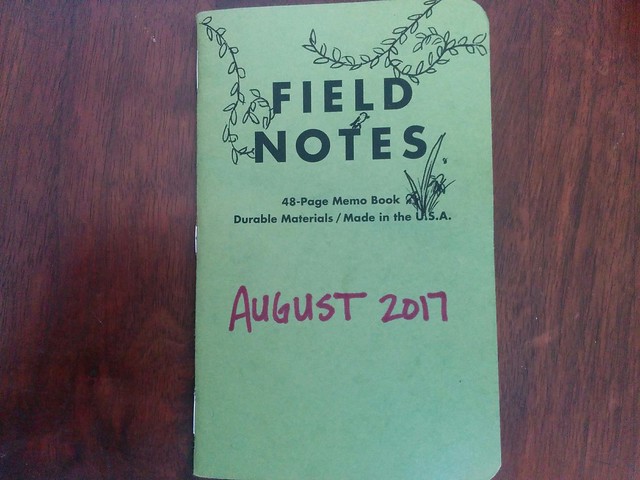
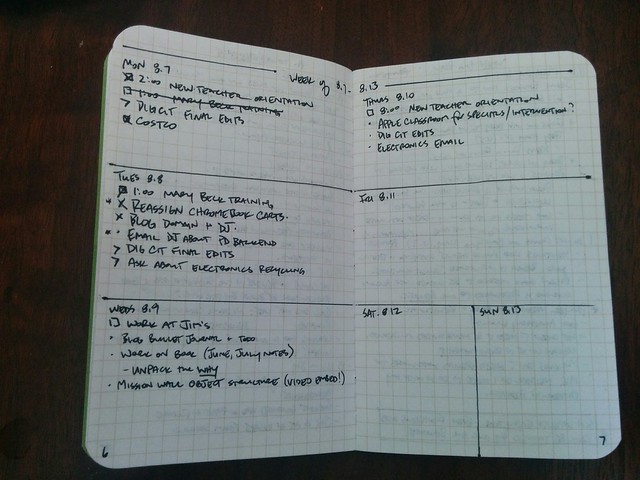
I wanted something functional, which meant I needed something small. I had some old Field Notes notebooks lying around, which fit perfectly in my back pocket. Bingo.
Each book turns out to be just right for a month’s worth of work. So, each one is labeled with the current month out the front cover. It also provides a nice doodle space during meetings.
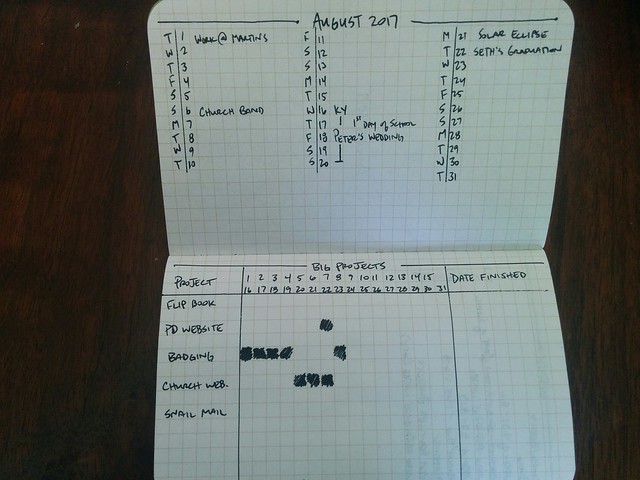
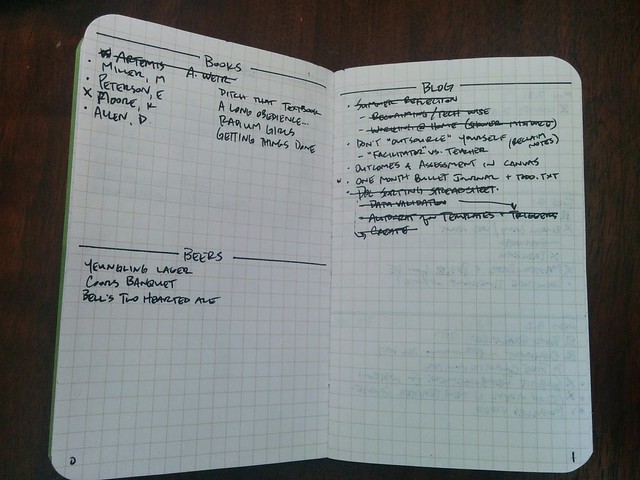
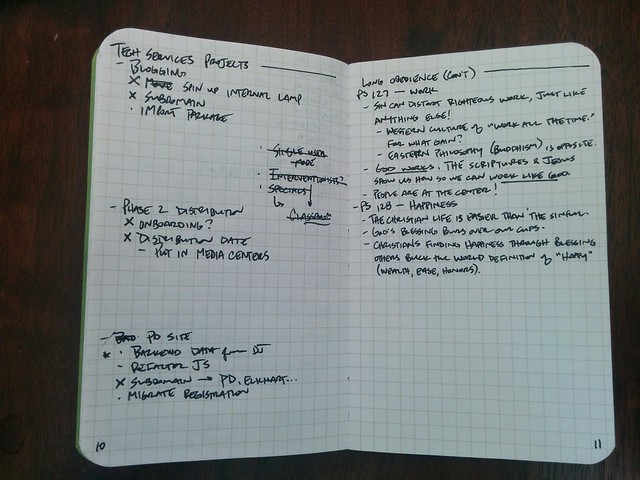
Inside, I break up the first few pages into the month’s calendar and large project logging. After the index, I keep a couple pages for books I read that month, beers I drink, and blog posts to write. There may or may not be a correlation between the number of items on each list at the end of each month. Research is ongoing.
My week setup is new to my workflow. Taking a spread and breaking it down into day to day helped me get my mind in order. Large project milestones and appointments tend to take up this space. I’ll take the project milestones and add them to my todo.txt file for completion as I move through the week.
The thing I do like about the bullet journal system is that you always have blank pages later in the book. I don’t have to cram everything in between pre-printed week layouts. It’s flexible and it works well for me, especially because my role is expanding this year, with lots of moving parts on a number of projects.
I’m in my third full month of the combination bullet journal/todo.txt list and I haven’t dropped many balls yet, which is good. I feel more prepared day to day, laying out obligations and needs on paper and then adjusting small tasks to make sure those get done.
No frills, no tweeting my immaculate page layouts, no discussion over what type of pen I use. Just a good, efficient, simple system to get stuff done.
The edu-blogification of ideas gets overwhelming. Six years ago, I went to a workshop on using videos to help with my instruction. We called it the flipped classroom and it helped me work more effectively with my students. I learned about my own strengths and weaknesses (watching your videos day after day is a great opportunity for reflection) and I had the fortune of being pushed by some great friends to think deeper about instruction.
A couple years later, many of us felt like “flipped classroom” wasn’t descriptive enough. Words mattered and suggesting that the classroom space alone is what changes wasn’t accurate. So, we started saying “flipped learning.” We even got together one weekend and wrote up what we called the four “pillars” of flipped learning.
For me, the biggest piece comes from Ramsey Musallam, who says that flipping, at its core, is distinguishing between the “community” space and the “individual” space. What happens in community traditionally is lecture – whole group instruction. Move that to the individual space in whatever way you’d like and you’ve essentially flipped.
The pillars also make no specific mention of when or how you do this to be considered “flipped.” I tend to move my instruction to video so students can watch it if (or when) they’re ready. This might be a week early, it could be a month later. I don’t really care how, when, (or even if) they watch my video. The video is simply a step they can take at one point or another to work from.
Distinguishing between an “in-flip” or “out-flip”, a “homework” flip or a “nowayhomework” flip (or any other naming convention slapped onto the idea) begins to wall off possible points of collaboration and growth because camps have been set up. Lots of posts outlining the core tenants of being an “in-flipper” vs an “out-flipper” discourages discussion because it focuses on a single implementation in a single classroom with one particular set of students.
When we wrote the pillars, we worked to be specifically non-specific. Indicators can help define what happens the majority of the time and it can provide common ground for discussion or debate. Specializing criterion – often to stamp a brand on it – doesn’t help the broader community grow. Look for ways to describe a method or structure without coining a new label, as innocuous as it may seem, because of the danger of isolating ideas.