Posts
Test prep is becoming more insidious. Rather than being outright drill-and-kill for the multiple choice marathon students are forced to take, now it masquerades as “critical thinking skill development” and “article analysis.”
We’ve spent the last few months at school designing writing prompts based on articles. We then had the students read the articles, discuss the topics, and do a written response on it. Not because that’s good instruction (I’m not saying it isn’t…) but because that’s what the almighty test has them doing now.
Test authors and companies had to get sneaky. The pushback on high stakes testing has hurt business, so they changed the format. Students are now tests on analysis and critical thinking. But, it has to fit within the acceptable parameters of the item.
Indiana is particularly bad this year. My high school students will take the test for a total of eight hours and thirty minutes this year (starting this week). And that was shortened from the original 12 hour draft released by the state. At the same time, Pearson will make $72 millon over the next two years to tell me what I already know about my students. We will also continue to pay CTB-McGraw Hill another $68 million (after losing the ISTEP contract because of repeated errors) to create practice test.
Indiana’s total testing bill over the next two years: $133.8 million.
And I’m having my copies counted to make sure I don’t print too much out.
Hours and hours wasted this year, as in years past, and if patterns continue, for years to come. Protect your students, protect your time.
Now begins my grumpy time of year. We have ~60 school days left, 28 of which are slated for testing in Indiana.
The Hippocratic Oath really parallels education. More on that somewhere else.
I cannot play at God in my classroom. I am not a dictator. My role is to provide an environment and situation in which students can learn. I work hard to do that. I take that responsibility very seriously.

Choices are made by students to either trust me in the process laid out or to try their own road. Some can definitely handle their own road and I’m proud and thankful for that. Others need to be carried a great distance before they’re ready to walk on their own.
But I cannot make it happen. It isn’t my responsibility to make the choice for students. It never will be.
I can’t hold myself accountable for decisions that aren’t mine.
I’m not a doctor, but I think this idea stands out the most.
Before I dive in, I think Justin Aion and I are parallels of one another in the multiverse. His day was similar to mine.
—
Six weeks into this semester, I have three of six classes with averages in the 50% range. Some of those classes include students with sub 30% grades. Most of it is from choosing not to engage in any way, shape or form. I’ve tried blanket policies. I’ve tried meeting in the middle. I’ve tried strategy after strategy to no avail in some cases.
So I sat down with each class and asked them what to do.
Five of my six classes had fantastic conversations about the choices that have been made. We’ve talked about why we come to school, what the purpose of the class is, why I do what I do…it was much more insightful than I expected. But, there was still business to attend to.

Most classes came up with conduct agreements that we all signed (students added their names to a Google doc which I then printed and signed) and are now hanging up on the wall as a reminder of what we’ve all agreed to. It includes things like:
– One day each week to go over the week’s stuff to make sure we’re all on the same page.
– Group roles (similar to POGIL) to be used any time group work is being done, not just special tasks.
– An actual tray to turn papers in to, not just the corner of the lab bench.
– An actual dedicated place to find extra copies of stuff (rather than relying on me).
And then the elephant: phones.
They’ve been a problem for the majority of my students. Some classes more than others. Most agreed to a Phone Jail system where the phone goes when it’s reached the limit. They came up with particular infractions which will be self policed (that’s the idea anyways). I’m the final say in Phone Jail.

I’m trying to keep it lighthearted. They know when they’re distracted, I think calling it out with something silly/serious like Phone Jail will help.
All in all, I think they were healthy conversations that helped us all understand each other a little better.
—
Then, The Class Who Chose Not To Choose.
I prompted, they were silent. They came up with, “You need to be more strict” and “Just kick people out.”
Another asked, “Dude, why are you asking kids how to do your job?”
That was a good one.
It’s sad that our culture is one in which students can’t imagine a better way to work together. I’m the teacher. They’re the students. What I say goes (unless they disagree with it, of course).
I made it very clear that their indecision and unwillingness to work with me meant lockdown. No phones, no freedoms to choose seats…nothing. I was met with silence. When we got to work and I gave two students a phone warning…well, you can imagine how that went.
—
Changing culture takes time. I have to remind myself that it’s a multi-year process. I’m blessed that the majority of my classes are willing to try and address culture shifts. It’s jarring when one group of very talented people choose not to take that step of faith.
I’ve been working very hard this year to make sure students experience science – or the process of science – as much as possible. Physics and chemistry are real and they matter to us. It’s my job to help them see why they matter to us.
Placed into a school context, I ask students to prove that they’ve learned something. I grade based on standards with a very simple standards-based method (based largely on Frank Noschese’s writing): if you know it, full credit. If you don’t know it, no credit. I don’t fuss with percentages or sliding scales. The objectives (standards has a different connotation to students, more on that another time) weight in at 80% of their final grade. I still give tests and quizzes which can demonstrate the learning, but students are free to show me what they know at any time for credit.
I’ve run into an issue where students memorize snippets in hopes of earning the objective. It’s a checkbox to them. I’m trying to show that learning is more than the simple recitation of information. It’s the sum of the experiences and, more importantly, what you do with those experiences.
I get this way every time I give a quiz or test because I have to constantly reiterate the importance of learning, not just in “passing.”
Waves are tricky to teach. Students feel like they already have a ton of experience with them (you’ve been to the beach somewhere, I’m sure.) and that there isn’t a whole lot more to learn. So, I try to make it hands on and connect with other areas of interest.
For instance, I brought my guitar into school. Music is waves working well together. So, I fiddled around during class while they were working and had them make connections between the guitar and the theory of waves. A few days later, I moved into a NOVA episode about the 2011 Japan earthquake and resulting tsunami…more waves. Students were able to connect the abstract – longitudinal and transverse waves – with the concrete – P and S seismic waves. At this point I introduced the earthquake lab.
The Setup
Students broke into teams of four and assigned roles – Project Manager, Treasurer, Research Director, Architect – based on their interests. Their task was to build a building at least 40cm tall out of spaghetti, marshmallows, and tape which would stand up to an earthquake. I modified this doc (Word download) and gave one sheet per group.
The Challenge
When I assigned this task, I said the structure had to be at least 40cm tall, but I didn’t tell them that it should be as tall as possible. Some groups naturally went for it (one group hit 98cm!) while others played it safe. Next time, the height challenge will be added.
Also, if you look at the document, I dropped the line of credit to $4000, thinking it would make them think through their designs. I also limited their trips to the store (me) to two visits to really make sure they designed. Nearly every group was very intentional, but I still wish I had added the “economy” challenge to the height: tallest building you can make (at least 40cm) while staying cheap. Things to remember for next year…
The Shaker
The final hurdle was designing an earthquake machine that would shake every building fairly. I also wanted them to see the difference between P and S waves, so it had to shake on two axes. I tried to work through a couple of ideas which would have required cranks, drills, drawer sliders, and lots of engineering and instead landed on something sweet and simple: a tone generator on our LabQuest sets and a hacked apart speaker.

P Wave arrangement. Speaker is mounted below the platform.

S Wave arrangement: lateral speaker with the LabQuest hooked up.
I used some 10-gauge house wire and industrial strength hot glue to add some hooks to the speaker baffle. A small power source let me control the volume of the tone being generated. I drilled holes through a small whiteboard to mount on top of a speaker (P waves) and beside a speaker (S waves). We ran the P waves at around 25Hz and the S between 10-12Hz. The goal was to show students how properly-built buildings resonate with the shake, not fight against it.
It gave a pretty good shake…my speakers this year were a little small, but it worked well to show resonance. I think if we went for height next year, we’d get a few more building failures, which are just as important as building successes.
—
Thanks to Anthony Purcell for making sure I wrote this up. Leave a comment if you want tips on building your shaker.
I’ve done a ton of labs with students this month. We’re learning about waves and there are some fun demos and experiments you can use to illustrate ideas.
My absolute favorite tool is: my cell phone and a ring stand with a claw clamp.

Don’t put a ring on it.
I’m now super mobile and can film some sweet science action to use in videos, post on the website, and just generally have in my back pocket when I need something.
Like today, we were discussing how waves travel faster through some media (solids) than others (gases). So, I set up two rows of dominoes, one spaced tightly and the other less so, and let the science happen.
Can’t see the video? Try looking [here](http://blog.ohheybrian.com/wp-content/uploads/2016/02/domino3.mp4)
I have a lot of other examples, including a couple which will have their own posts…someday…maybe. If you don’t teach science, ask your friendly neighborhood chemistry teacher if they have an extra stand and clamp. Or, just head over to Amazon and grab yourself a little phone tripod to have. It makes a ton of difference in how you think through teaching a lesson and the more you use it, the more opportunity you’ll find.
My video was rambly this week. I think it’s because I have complete control over my environment, but there’s just not much I can do with it. I have a really small classroom and some big classes, so it gets packed quickly.
It’s easy to fall back into default “classroom mode” where desks are in rows for ease of movement, which is important. If you can’t do what you need to do because the arrangement isn’t working, (but hey, they’re in groups!) you’re environment still isn’t flexible enough to push students into owning their learning.
I’m pretty open about where students sit. A year ago (nearly to the day…wow…) I wrote about seating charts and they’re influence on the environment. I’ve resisted making new charts this semester because I’m shooting for the right balance in the room. This ties more in with the culture, but the physical environment is affected: who sits where, how does their interaction demand attention from the space, etc.
Being flexible with the environment starts the change. Being okay with (sometimes) big groups of kids helps send a message that learning is collaborative. Moving around your space (yes, it’s okay to have a desk and a space of your own) so you work more effectively in the classroom space will also help make that transition. Since moving my desk, my interactions have improved, my rapport is better, I feel more aware, and students expect more interaction from me. All good things.
Ken Bauer has more energy than I know what to do with. I met him two or three years ago (something like that) and ever since, he’s taught courses, advanced in his university position, joined the FLN board, and really just been a great friend.
Ken is running an open course (a cMOOC if you want to get technical about things) on Flipped Learning over the next eight weeks just because. He organized everything, set up the website and syndication, promoted, and is now managing 40+ people going through the course. I helped out last year by hopping into a hangout or two with some folks to talk about the Pillars. But, I wasn’t in the classroom – I was an invited guest.
This year, I’m back in the course because I’m back in the classroom, trying to work out a lot of the same problems I thought I already had answers to. Kudos if you can follow that deeply meta line of thought.
I’m hoping to reevaluate what I think about flipping. Paul Andersen talked about his love/hate journey with flipping last year at the annual conference. We continued the discussion on a boat. I think I’m paralleling his journey now…I like the idea, I’m frustrated with the implementation and bottle necking (some of which is definitely my fault), but I think it’s still the right thing to do.
I want to find balance. I want to rework my understanding of what I do and why I do it. I want to articulate what flipping looks like for me in more concrete terms when I’m asked. I want to see what other people do. I want to be challenged.
I’m really looking forward to the next eight weeks.
I’ve been looking forward to teaching electricity all year. I’ve never done it before and I was excited about the hands-on stuff you can do. Who doesn’t want to play with batteries and light bulbs?
Seriously.
I split the lab into two days. Rather than prescribing circuits, I knew I wanted to make it inquiry-based. There are limited variables with simple circuitry and I wanted students to find the connections and patterns on their own.
Day 1
I put together kits for students with a D cell battery, some Christmas lights I cut up the night before, and aluminum foil to serve as a “wire.” Each group was challenged to make five working circuits.

The struggle was real. The success was even more real. Smiles all around; shouts of joy when the bulbs lit up or turned off when they were supposed to. Plus, lots of shrugging and smiling from me as I avoided answering anything, which was fun.
Plus, I got my favorite answer ever from someone on the last question…

The circuit diagrams were based on a model on the board with unlabeled components, which helped them struggle through drawing a nice, clear design. At the end of the day, most students could draw a diagram based on the apparatus they had built.
Day 2
Time to put the learning to work. I still haven’t taught anything about how to split the voltage across a series because I wanted them to make the leap of faith themselves. This lab required the students to read a circuit diagram to use the voltmeter and ammeter. To simplify (and reduce the stress of lab time) each group had to choose to measure volts or amps. If they finished early, I let them finish taking data on their own rather than swapping with another group.

Again, I refrained from answering direct questions as much as possible because I needed them to not only be able to draw a diagram, but read an unknown given to them. They rose to the challenge and, for the most part, were able to get at least one data set completed by the end of lab.
——-
The struggle was real and the payoff was satisfying. The goal was achievable and success came quickly, which spurred more effort on the harder challenges. This lab is definitely a keeper for next year. To improve, I’m going to make a better connection between the labs…some groups said they didn’t see the pathway I was trying to set up. Either way, it worked great and I’m already looking forward to putting the pieces together next week.
To top off the great day, Batman swung by with a friend.

I gave up using Jetpack a while ago on my blog because I couldn’t control where it sent information. I wish it was more modular in nature because it is helpful. But, I don’t want visitor (read, your) information sent off to unknown folks to do unknown things. So, I turned it off.
I’ve slowly added functionality back since turning it off one plugin at a time. Plugins are nice because all of the data is hosted right with the blog – there’s no sending things to third parties. At the same time, it’s a little more upkeep on my part to make sure a plugin doesn’t break and send the site all wonky.
Right now, I’m using the following:
– Akismet – Essential for spam blocking. As of right now, it’s blocked 17,000+ spam comments since I installed it way back when.
– Email Subscribers – Some folks still like ye olde notifications via email when a new post is published. This plugin lets me set up custom emails for those notifications, which is nice.
– Send email only on Reply to My Comment – I love how straight to the point these guys are. “What does this plugin do?”, “Read the name.” This adds comment notifications back in but allows users to choose when they want those emails. These are also personalized in the settings.
– WP Power Stats – I write for me. But sometimes, it is nice to scratch the “how many people visited this week?” itch. It’s also nice because it shows browsers people visit on, which helps me make decisions about updates.
– Typewriter – This lets me write in Markdown because I like Markdown. Do I need a more valid reason?
– WP-Gistpen – I’ve been posting more and more code lately and this little guy lets me grab snippets from Gist, which is a super-handy snippet repo from GitHub.
Nothing fancy. And only what I want. All managed by me, on this site, with no third party reaching in for that information.
—
This is the third anniversary of Aaron Swartz’s suicide. He was a champion for data privacy and the idea of a free and open internet where ideas are shared. I didn’t hear about him until two years ago, on the first anniversary.
Maybe his story stands out because he did things like co-author RSS (yes, that RSS which syndicates just about everything on the web), start a non-profit (Demand Progress) which successfully, among others, beat the cable lobby for substantial Net Neutrality rules, or maybe it’s because he was my age.
Whatever the reason, data is important, and it’s not something I take lightly any more. Yeah, it would be easier to just use Jetpack, but at what cost? Information is a commodity, but it’s not one that benefits you or me.
The fact of the matter is that we are all responsible for the health of the Internet each day. This is my little part.
We’re working very hard with students on annotating articles in preparation for the new state test sections. The goal is to help them find pertinent information in multiple texts which can be used to construct thorough written responses. We have a standard format…circling unknown words, underlining main ideas, etc, which help students transfer the skill from class to class.
Finding relevant articles means lots of searching online. Once you find text, it helps to format it for use with students. I like giving students wide margins for notes as well as nicely laid out paragraph numbers for reference in discussion and writing. It took a long time to copy and paste each article into a table cell and reformat, so I wrote up a simple Google Apps Script to do it for me.
It works through the document, checking paragraphs (line breaks in Google-land) for text. If there’s text, the script copies it into a numbered row of the table and then deletes the original. What you’re left with is a nice copy of the article to print out and use with students.

Here’s a template document you can make a copy of and play with. If you have questions, send me a tweet, @bennettscience, or leave a comment below.
We’re playing with magnets this week in class. (We’re actually finishing playing with magnets now.) It’s been great and this is by far one of my favorite units to teach because everything is so hands on. We’ve done lab activities every day. Magnets are accessible. They’re approachable by students. They’re easy to put your hands on and learn from.
Play in science is crucial to the learning process. Mess with something, see what it does. Mess around again.
Today, some students were really playing with ideas and others were just playing.
There must be a balance. Finding that balance in allowing for play alongside play is hard to strike because they can switch so quickly. Intentional situations (good design) help maintain the balance. Finding ways to make students think they’re just playing around is a good way to have them really play with ideas.
It’s frustrating when that opportunity is missed.
Months ago, I turned off Jetpack on my blog. I use WordPress and Jetpack is a package of apps which handled email subscriptions, comment management, social media posting, etc. Unfortunately, it also collects a ton of information about visitors to the site for their own use.
I’m not in the business of passing your information along to another company. So, I turned off Jetpack. And off it stays.
As a result, I lost some things, one being email subscriptions. I just activated a new plugin which will handle subscribing to posts via email if that suits your fancy. Fill out the form at the bottom of the page with your name and email to opt in. Make sure you confirm your email address in the confirmation email you get!
As a matter of policy, I don’t collect any information about you without you knowing.
Email opt in is voluntary. Your email address stays private. Always.
If you would like posts mailed physically, send me a tweet, @bennettscience or leave a comment below and I’ll get in touch with you. Completely serious offer.
My wife had been hinting that she wanted to use recipe cards in the kitchen rather than her phone all the time. So, I took a few hours and made some up using Inkscape. They’re clean and minimal and print out as 4×6 cards on cardstock.


The font is a Futura clone, so no need to worry about royalties or licenses.
You can download the Inkscape files if you want to tweak the design (front, back). Or here’s a ready-made PDF for your printing pleasure.

I’m overwhelmed by the feeling of immense blessing and immense wretchedness each year. The birth of Christ – King of Heaven, seated at the right hand of God Himself – born in a barn…the lowest of lows. Entering our world to serve as the perfect sacrifice for our sins, a plan set in motion from the moment the fruit touched the lips of man, as a baby, completely dependent on those he came to save.
Parallel to his birth, Christ dying on the cross as a criminal. Crucifixion was saved for offenders who needed to be examples. Cruel and torturous, saved for the worst of the worst. Broken and returned to the lowest of lows.
From Ann Voskamps’ book, The Greatest Christmas:
… and on a chilled night under stars, there is no grand mass of people whose efforts pry the stars into place.
In an obscure caved barn, down some backstreet of Bethlehem, there is no great host whose good works unlatch heaven & impress God into coming.
Tonight, at the foot of the cradle of Christ, like at the foot of the Cross of Christ, there are no big people—no powerful, no proud.
Tonight there are only those who tramp to the manger with nothing; there are only the manger tramps, the men who lay down all the self-made, the women who lay down all the self-sufficiency, the children who lay down all the wants. We, the manger tramps, who kneel where thrones tremble and demons fall and the self-made crumble and the self-righteous weep.
Tonight there are only the manger tramps, who tramp in with all our poverty of spirit . . . so there can be an abundance of God.
And the bulk of all your worn shreds slip off the weariness of your back.
You have tried to polish enough for Him with these rags.
You have tried to patch together so much for Him.
You have tried to produce too much for Him with these rags.
And you—we—who are the manger tramps see it tonight, what He’s written in red on all our filthy rags: “But I did it for love.”
All of conquered heaven and grateful earth echo and throb tonight with the heart cry of the God-Child: “I did it for love.”
What can all the manger tramps do but wrap the vulnerable God in strips of our bare, broken hearts so He can lodge in the intimacy of us?
The greatest Gift laid into our empty hands…Grace is weightless.
Even the winning stars singing it over the manger tramps tonight.
God came because he chose us.
Merry Christmas.
I promised Stacy Lovdahl I’d post this the other day and then promptly forgot. Sorry, Stacy.
I took a graduate course on curriculum development and implementation this semester through Ball State. Not many of the assignments were open-ended enough to make for interesting blog fodder, so I didn’t post much. For my final project, I chose to redesign the course of study for my school based on an inquiry model. There are two components: the redesign document and the theory backing it up. They’re both available as Google docs with comments opened.
Many, many thanks to Michelle Baldwin and Kelly Tenkely from Anastasis Academy for late-night questions about inquiry mapping, standards reporting, and pretty much anything I couldn’t wrap my head around. Check out the work they’re doing…it’s amazing.
The end of the semester is bittersweet. It’s exciting to think of the long break coming up. At the same time, the burden of work to be completed feels futile for many. I’ve been fighting significantly lower effort patterns and I don’t really have a good way to bridge the gap. Part of the issue this year is that I missed an entire week to stay home with the new baby.
Not that I regret that time at all. By any means.
The theme for this week seems to be, “Why should I try? I can’t do anything about my grade now.” In some cases, this is true, and it’s a result of systematic, deliberate choices to not engage at any point along the way.
But.
I’m still responsible for helping my students learn. I’m constantly reminding myself that I cannot do the learning for them. There has to be an inkling of effort to engage with the tasks.
“No, we can’t take a day off.”
“Yes, we do have things to do today.”
“Yes, this will be on the test.”
(that last one kills me.)
I need to take each class as they come and make the most of it.
In October, I wrote about a bookmark application to get the text of a website for analysis in the Lexile analyzer tool. It’s a pain in the keister to copy text from a website, open a document, paste the text, save as a plain text file, then reupload to the Lexile website. The bookmark tool does the hard part for you (the clicks…all the clicks…) so you just download the formatted file and upload it to the Lexile site.
Depending on what you try and analyze, you might get an angry message like this one:
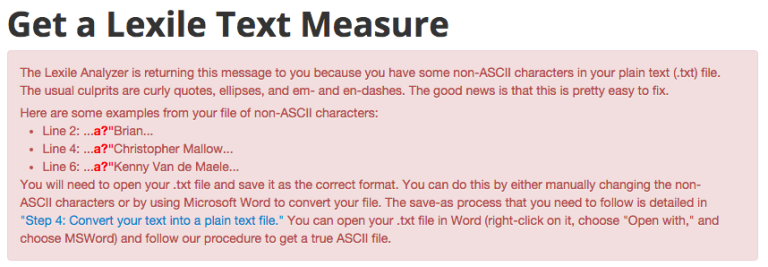
Nerdspeak, engage!
The only reason you’d use ASCII is if you, A) want to support legacy browsers (Netscape Navigator 1.0 anyone?) or, B) need to speed up query time on a string or a database. Modern web browsers are so much more efficient now, most sites use something called UTF-8. I’m guessing ASCII is needed for the Lexile analyzer so it can give you the score faster than it could with modern encodings.
Anyways, I pushed a fix to the applet tonight. It works by taking the text you highlight and encodes it to ASCII before downloading. So, still no conversions. And no angry red messages. And no more worrying about encodings.
You can grab the extension here or take a look at the source for yourself and tinker around.
I wanted to write this down while it’s fresh in my mind (and because it’s late).
I’m finishing a graduate semester on curriculum theory and practice and the final project I chose to complete was a redesign of a school’s curriculum. I decided to really push the boundaries and go for an all-inquiry, mixed age thematic classes. It’s a real swing from the norm. But, I think it can be done (mainly because it is being done).
Michelle Baldwin was kind enough to endure a ton of questions as I worked through some of the stickier points. Mainly, how does one lesson plan and account for mandatory standards in a school where students direct the exploration and topics for learning.
@bennettscience exactly. We still report on standards, but it's my job to look at what the kids are doing and figure that part out.
—Michelle Baldwin (@michellek107) December 6, 2015
What happens is linked back to the standard. Themes exist, but specific demonstrations come organically through exploration and play. The teacher’s job is to find those demonstrations and reconcile it with the student. Preempting the demo via planned assessment activity undermines inquiry.
My wife had our second daughter last week. I’ve been fortunate to be able to stay home with them this week and help out with the newborn and our two year old.

In the in-between times, usually late at night, I’d think about school stuff. In no particular order:
<braindump></braindump>
- I don’t do a good job recognizing culture in my classroom.
- I also don’t do a good job of having performance evaluations for students. Work is limited to the scope I set.
- At the same time, I don’t have a good way to have students access outside content. Many have devices, but many don’t.
- We’re moving into chemistry soon and finding those connections are difficult.
- I don’t want to give multiple choice tests anymore, but I have to stick with the other teachers in the department with the same course. So, how do I evaluate differently but maintain parity?
- When issues with ed tech are brought up, people take it really, really personally (I’m included there).
- Sometimes those personal feelings get in the way of good decisions (yep. Still including myself).
``

